
Write a Hello World application with Python
Launch Geany. From the desktop, select Applications > Development > Geany.
Select Project > New. Name the project hello_world_python.
The fields represent the following:
- Name — The name of the project.
- Filename — The filepath of the project, where the project settings are stored. This path generally ends in .geany
- Base path — The base path of all files making up the project.

Click OK when prompted to create the directory.
Write a Hello World sample application. This example uses:
import sys

if __name__ == '__main__':
        printf("Hello World!")

    sys.exit(0)
Select File > Save As, and save it as hello_world.py
Select Build > Compile to compile the source.
Select Build > Build to create an executable for the code.
Select Build > Execute to execute the code in a terminal window:

Try the linting function by adding spaces in front of the print statement.
Select Build > Lint. You should see an indentation error:

Remove the extra spaces, and the code should lint successfully:

Next, try debugging the Hello World sample. Set a breakpoint in your code by adding the breakpoint() function before the print statement:

Select Build > Execute to start the debugger. Geany opens a terminal, starts the
pdbdebugger, and stops at the breakpoint. Use the commandsn(next),s(step), orc(continue) to navigate through the code: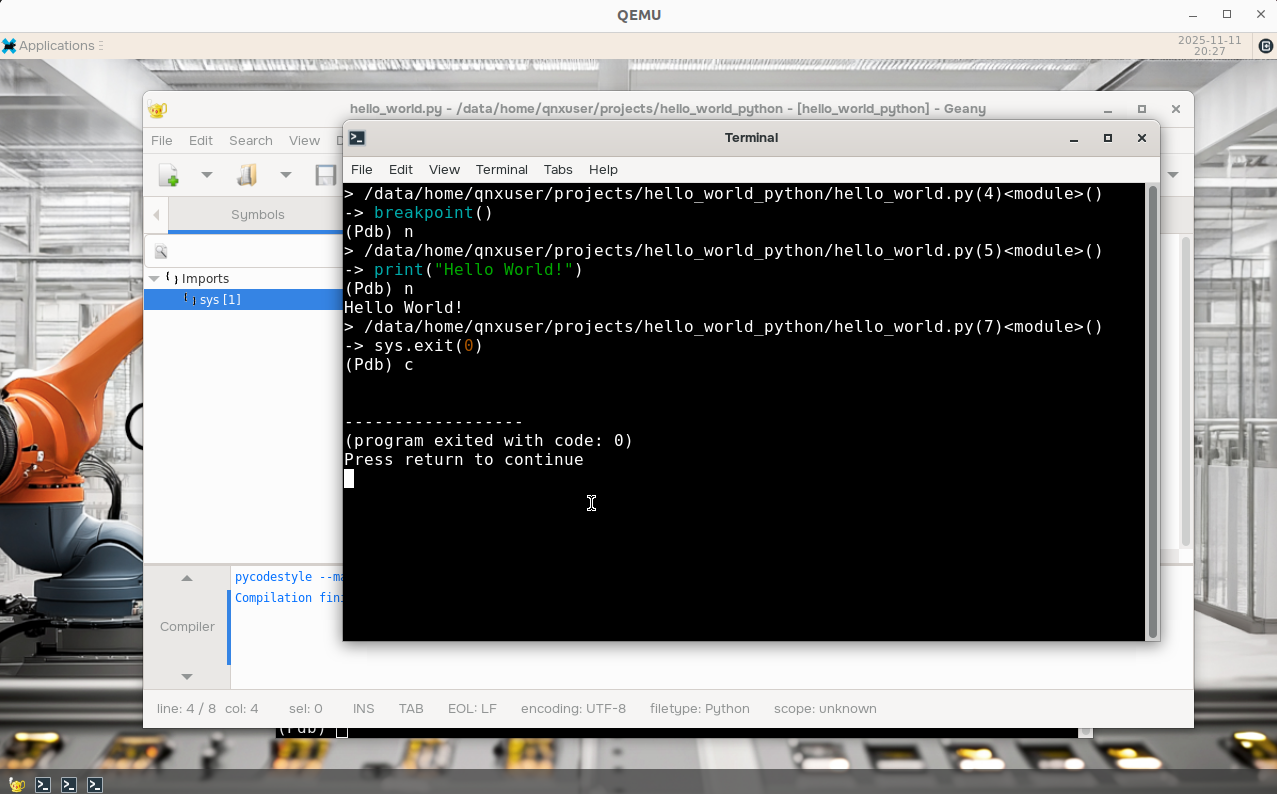
Next steps
The default commands for Python files are overridden for the user currently in /home/qnxuser/.config/geany/filedefs.
For more information on how to modify the default commands, refer to the "Adjusting build commands" section in the "Customizing Geany" page.
For more information on how to customize the lint commands, refer to the pycodestyle documentation at https://pycodestyle.pycqa.org/.