
Customizing Geany
Geany is a lightweight, open-source IDE. It supports C, C++, Python and many other programming languages.
You can find the QNX Developer Desktop configuration files under the home directory, ~/.config/geany.
Changing preferences
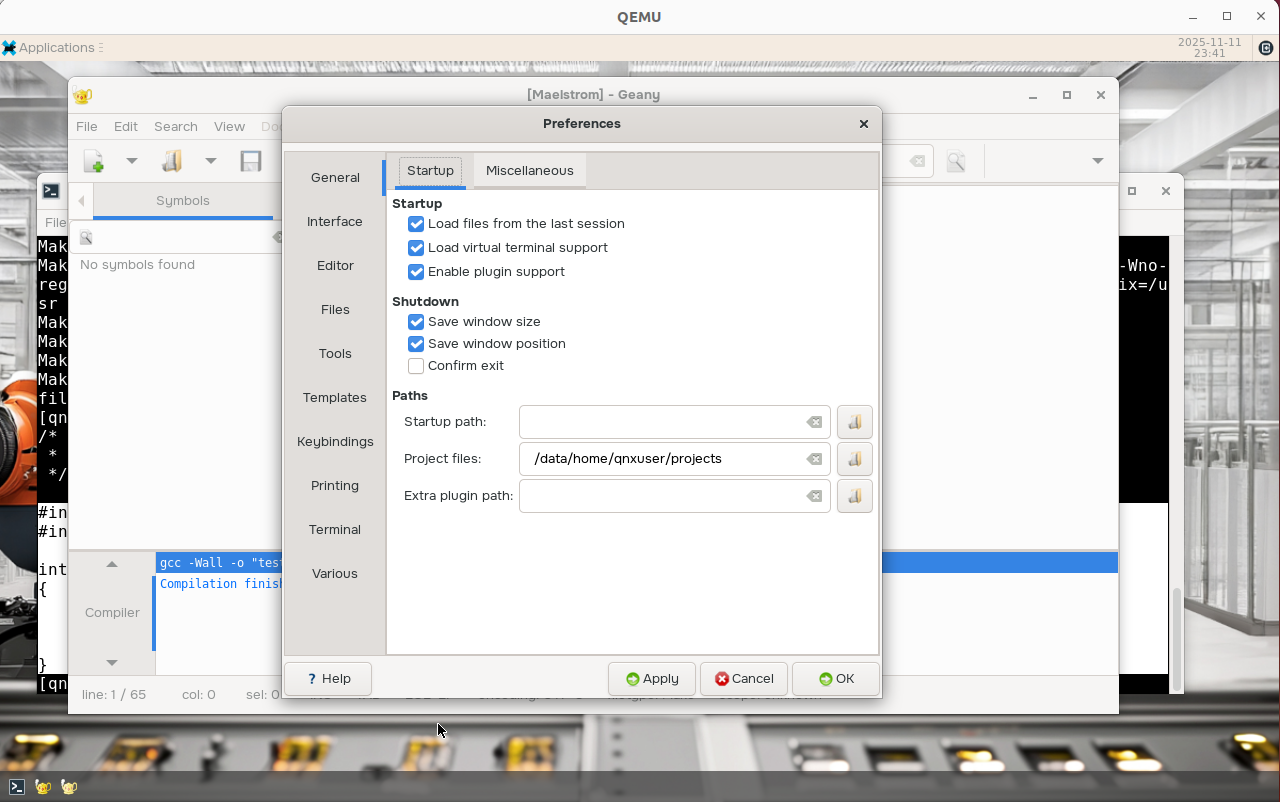
To set preferences related to how the IDE behaves, navigate to Edit > Preferences. The following window opens:
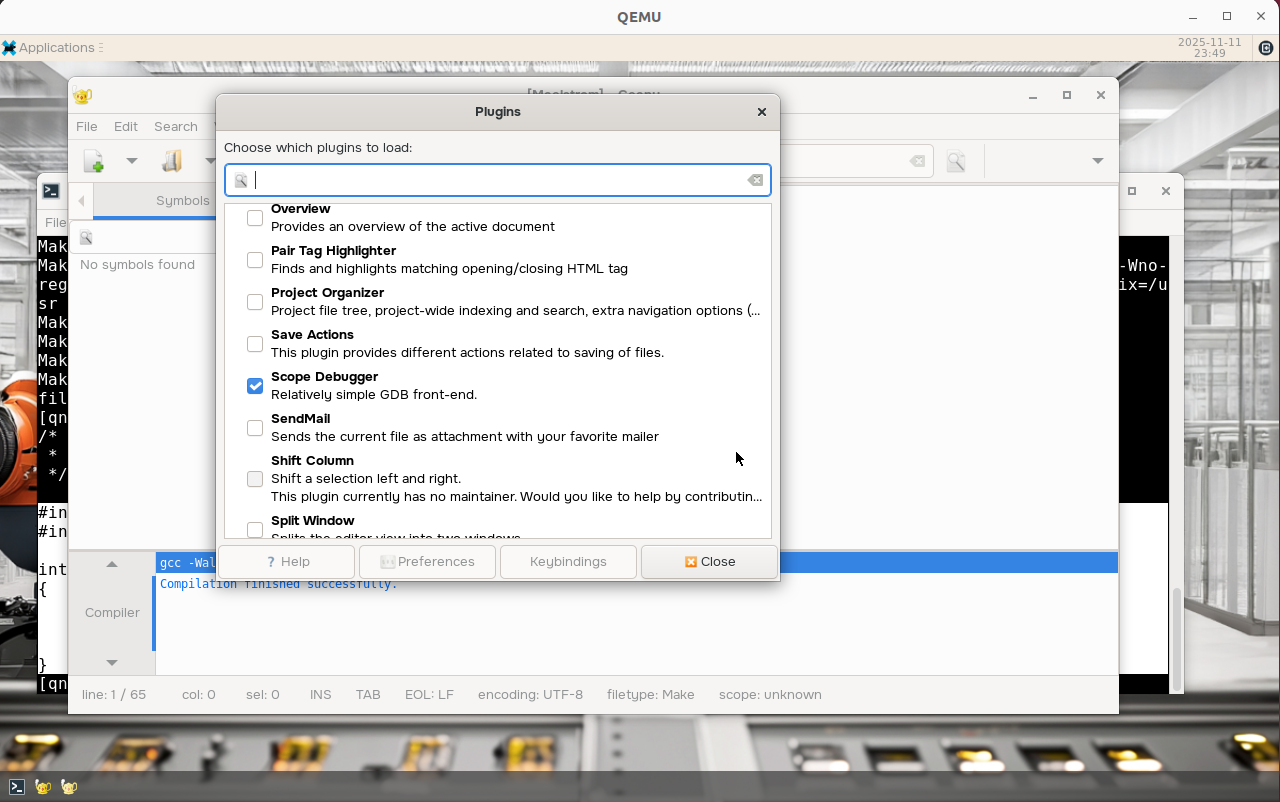
Geany also supports a number of optional plugins. You can find the available plugins under Tools > Plugin Manager. In the desktop, Geany is set up with the Scope debugger enabled by default:
Adjusting build commands
Adjusting build commands depends on the context in which they're set. Outside the context of a project file, when you open a source code file and the edit compile and build commands, the updates are saved in the corresponding filetypes file under ~/.config/filedefs. These filedefs define the default behavior for each file type.
For example:
Create a test.c file with no project file in Geany
#include <stdio.h>

int main (void) {
    printf("Testing\n");
    return 0;
}
Save it in the home directory (e.g., qnxuser).
Edit the compile and build commands for that file. Select Build > Set Build Commands. Add the
-gflag to the Compile and **Build ** C commands. Save the updates.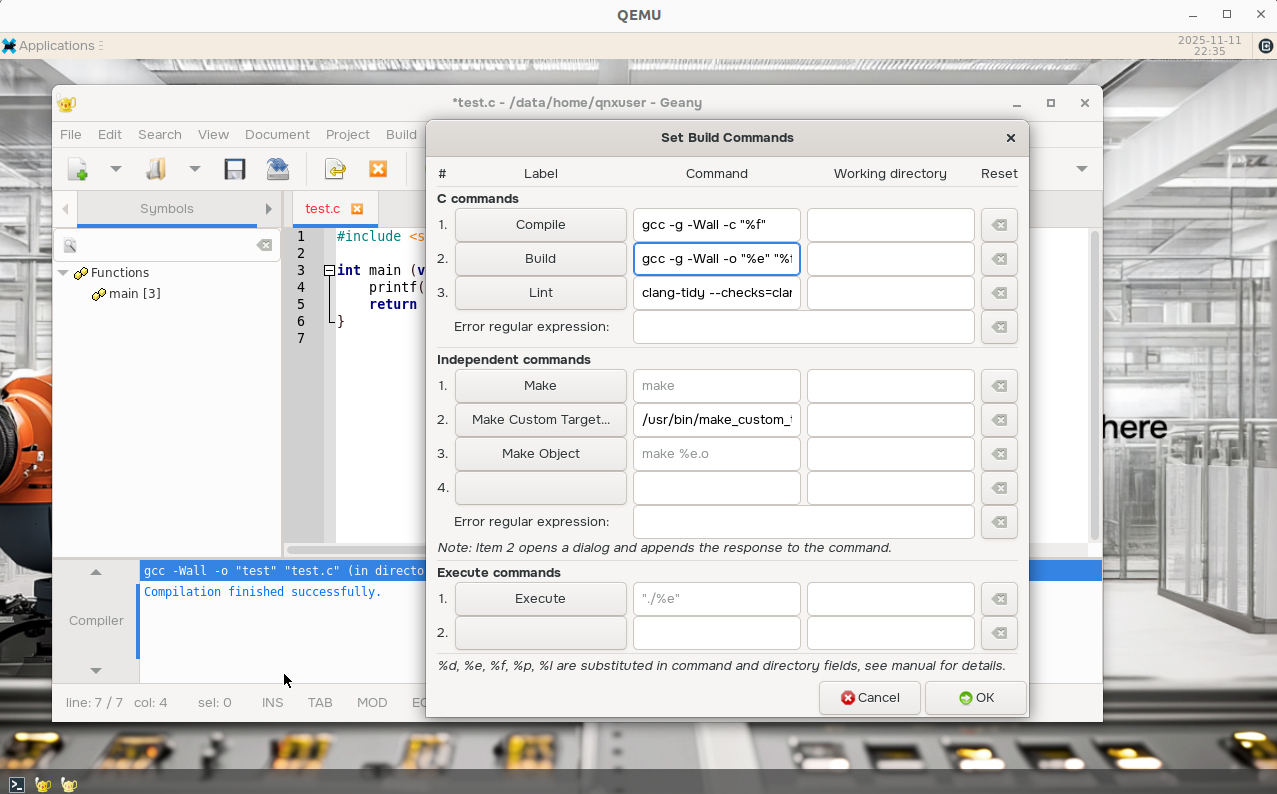
Notice that in ~/.config/geany/filedefs/filetypes.c, the
-gflag has been added to the Compile and Build rules under the build menu tag: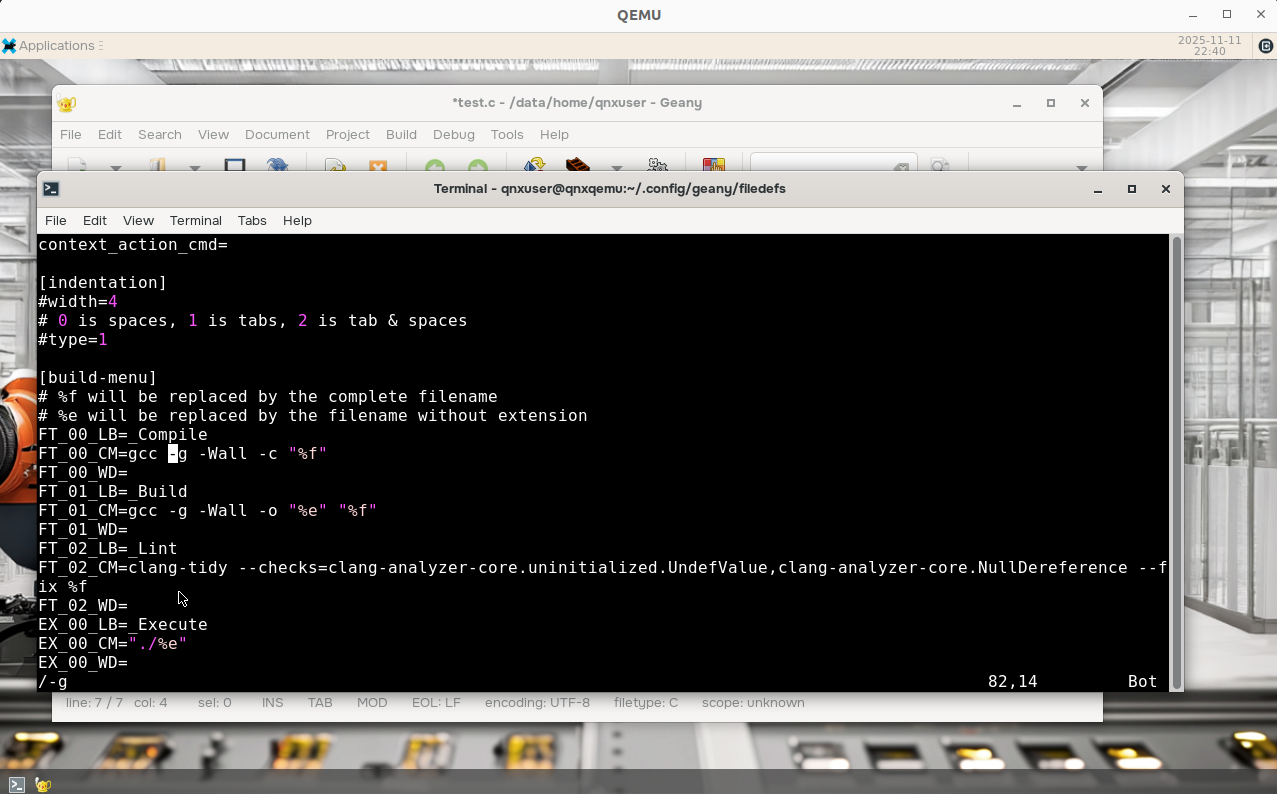
You can also manually edit these files in Geany. To edit the filetypes.cpp defaults, go to Tools > Configuration Files > Filetype Configuration > C > filetypes.cpp. Then, you can add the
-gflag: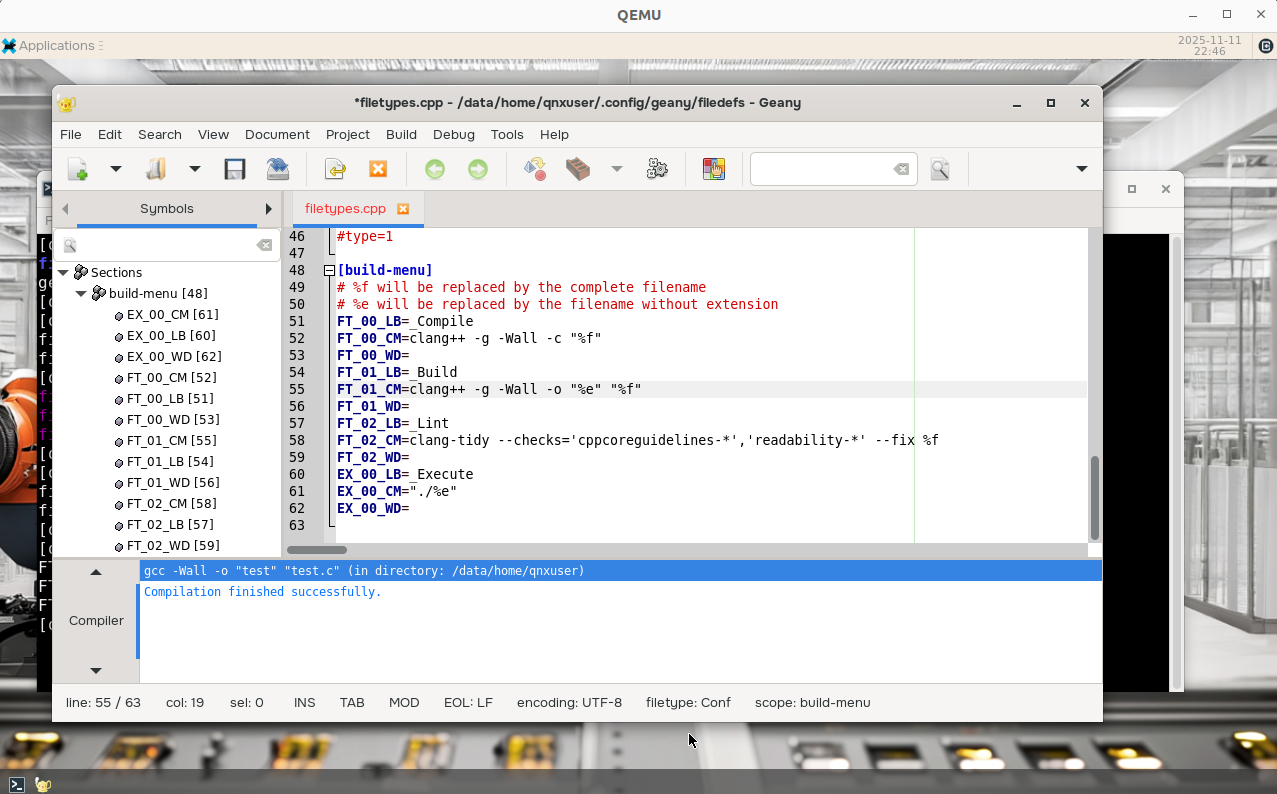
Adjusting build commands for projects
You can adjust build commands for a specific project. When adjusting the build commands for a project, the updated commands affect the specific project only and don't update any default commands. The updates are saved in a .geany file for that project.
For example, create a new C project and edit its commands to remove the -g option that you added in the "Adjusting build commands" section above:
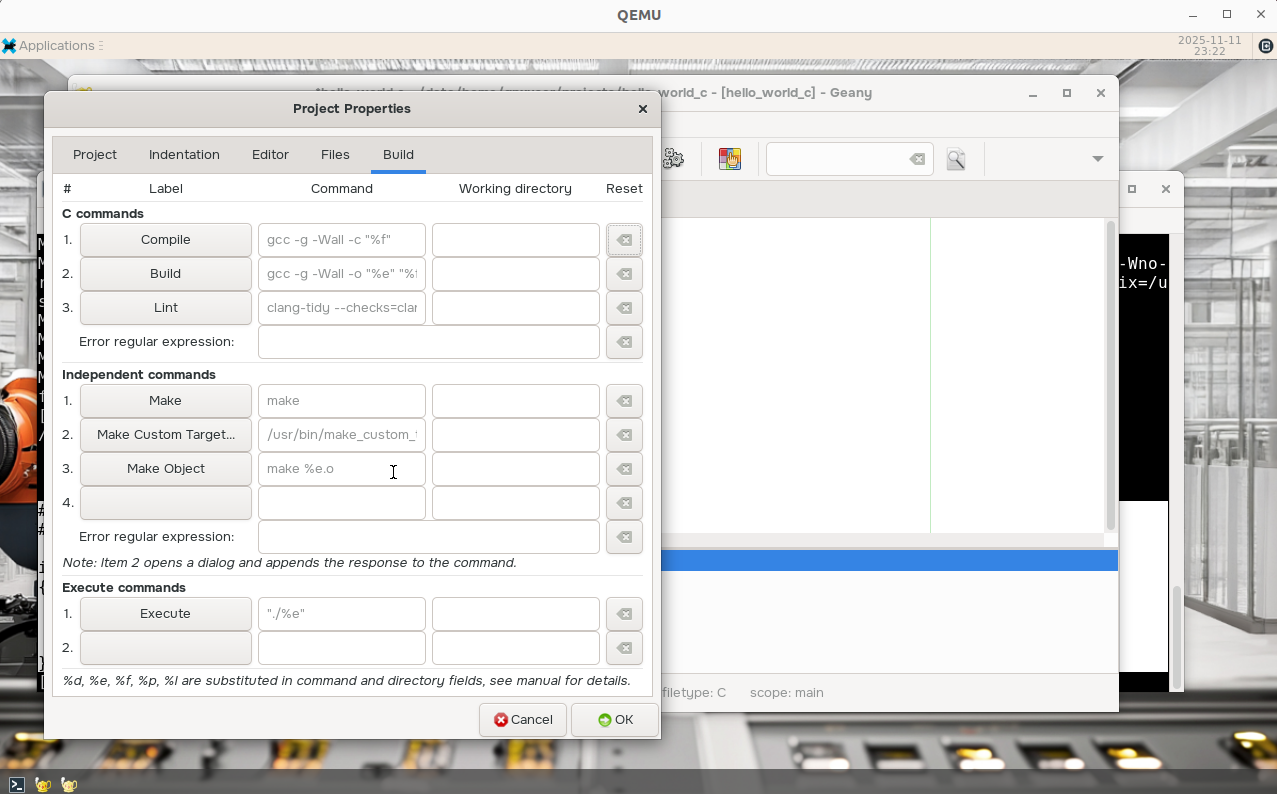
In addition to modifying existing build/compile commands, you can add new commands under the Make commands, Independent commands, or Execute commands sections in Project Properties. Each new command added shows up in the Build tab:
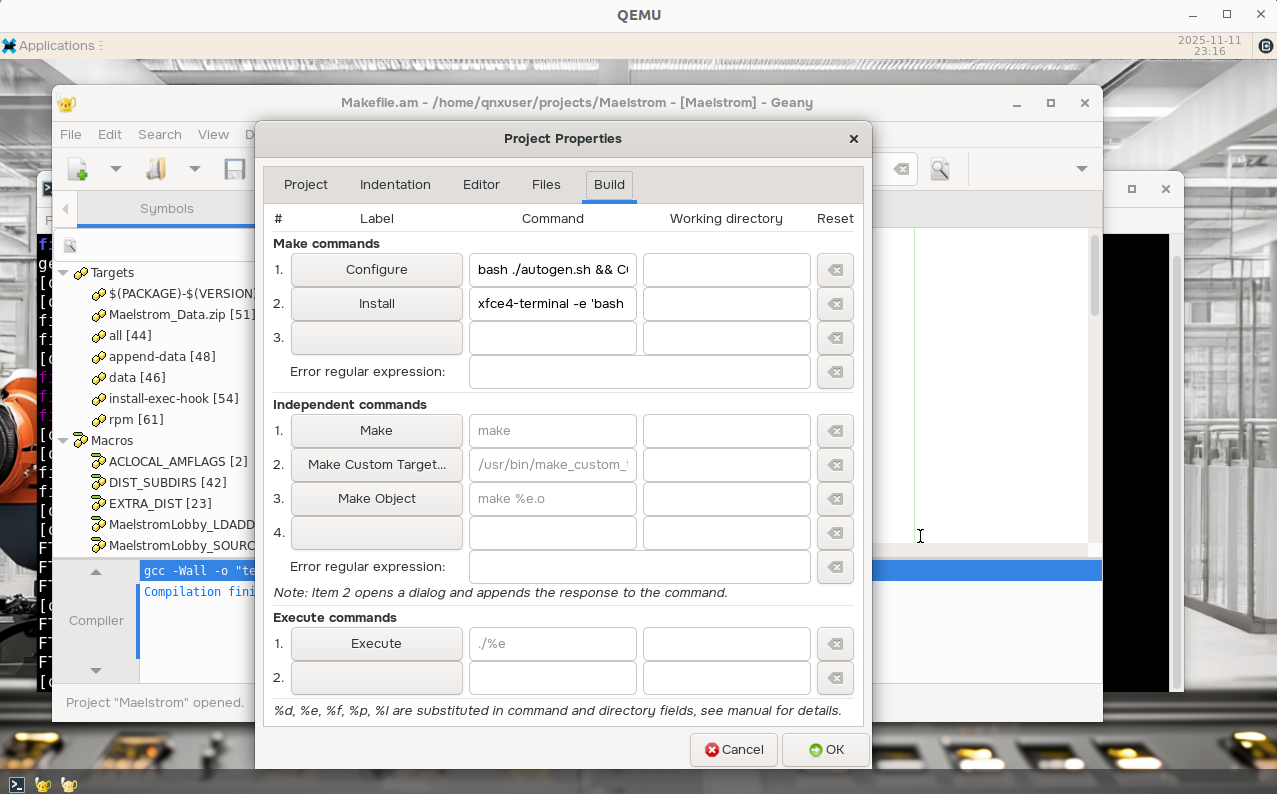
The Maelstrom project under the ~/projects directory is a good example that contains customized build commands. For more information on this project, refer to the "Maelstrom" section.