
Navigating the QNX Developer Desktop
The following section reviews the main elements of the QNX Developer Desktop, including the applications you can access.
Clicking the QNX Developer Desktop icon ( ) from the welcome screen opens the desktop environment:

Applications menu
The Applications menu, located at the top left of the desktop, is the primary way to launch desktop applications, as shown in the image below:

The following sections provide a brief overview of the applications in this menu.
Run Program
This shortcut launches the xfce4-appfinder application to help you find and launch available applications.
Default applications
The next block of the menu contains shortcuts for default desktop applications, e.g., Terminal Emulator, File Manager, Web Browser, etc.
Settings menu
Access the different settings applications to update the look and functionality of the desktop:
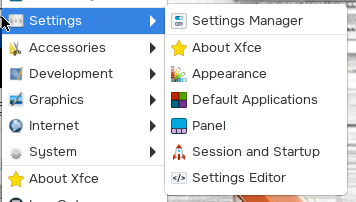
Refer to the "Customizing the desktop" section for more information on how to customize the desktop using the settings applications.
- Settings Manager
The main settings application that can launch the other settings applications.
- About XFCE
Access general information about the XFCE desktop.
- Appearance
Edit the GTK styles for various applications, the icon theme, and default fonts across the desktop.
- Default Applications
Change what applications serve as the default applications for web browsing (Epiphany browser), mail reader (currently unset), file manager (Thunar), and terminal emulator (XFCE Terminal). Under the Others tab, you can edit default applications for MIME type mappings. There are various MIME type mappings that are already installed in the desktop.
- Panel
Customize XFCE4 panels, including the size, appearance, and items included. Currently, Panel 1 is the only panel, and it represents the configuration for the top taskbar containing the Applications menu and action buttons.
- Session and Startup
Modify the session and startup settings for your desktop session. Settings under the General and Application Autostart tabs are respected, but the Advanced settings tab doesn't currently work.
- Settings Editor
Edit any of the settings apps' underlying XML settings.
Accessories menu
Contains various day-to-day tools.
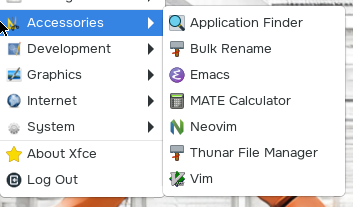
- Application Finder
Find and launch desktop applications.
- Bulk Rename
A launch mode from Thunar (file manager); rename multiple files (in bulk).
- Emacs
A text editor; refer to the section on "Customizing Emacs" for more information.
- MATE Calculator
Perform calculations.
- Neovim
A text editor; refer to the section on "Customizing Neovim" for more information.
- Thunar File Manager
Navigate the file system on your desktop and open files with custom viewers.
- Vim
A text editor; refer to the section on "Customizing Vim" for more information.
Development menu
This menu contains various development tools and demos.
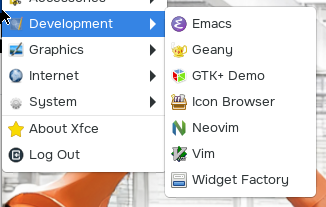
This section only talks about applications that haven't been mentioned previously.
- Emacs
A real-time text editor. Refer to the section on "Customizing Emacs" for more information.
- Geany
An open-source text editor that provides an IDE-like environment using plugins.
- GTK+ Demo/GTK+ 4 Demo
The main demo application included in the GTK+ 3 and GTK+ 4 toolkits. It includes various demos of toolkit features that you can select and run.
- Icon Browser
A GTK+ 3 demo application that demonstrates how to build an application for browsing installed icons.
- Neovim
A text editor that's forked from Vim. Refer to the section on "Customizing Neovim" for more information.
- Node Editor (GTK+ 4)
A debugging utility for GTK developers, which includes the various libraries and tools available for building custom, node-based interfaces with GTK+ 4. Use this application to load, display, and edit serialized render node files obtained from the GTK inspector. These files represent the internal rendering tree of a GTK+ 4 application. They allow you to debug how a widget (UI control) is drawn and compare the output of different renderers.
- Print Editor (GTK+ 4)
A demo GTK 4 application that demonstrates how to implement printing, print preview, and print settings dialogs.
- Vim
An open-source text editor. Refer to the section on "Customizing Vim" for more information.
- Widget Factory
A GTK+ 3 demo application that demonstrates the available widgets.
Graphics menu
This menu contains graphical applications.

- gThumb
A photo and image editor.
Internet menu
This menu contains the following internet resources.
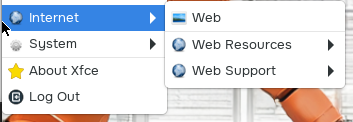
- Web
The Epiphany web browser installed in the QNX Developer Desktop, which is based on the WebKit browser engine.
- Web Resources
Contains links to QNX resources you may need to access while developing with QNX.
- Web Support
Contains links to QNX Everywhere support resources, in case you have questions or encounter any issues.
System menu
This menu contains system utilities, including the file manager and terminal.
Action buttons
Locate the current date and time, as well as the action buttons at the top right of your desktop. The action buttons are defined as follows:
- Shut down

Shut down the VM.
- Restart

Restart the VM.
- Log out

Close the desktop session and return to the welcome screen.