Set up the hardware
Before you can work with the board, here are a few things you must do. You'll need to set up the Xilinx Versal AI Edge VE2302 Evalboard. For more information, see the User Guide at https://wiki.trenz-electronic.de/display/PD/TE0950+TRM provided by Trenz-Electronic. The following is an overview of how to set up the VE2302 AI Edge board.
Connect the hardware
Use only the DC power supply provided with the board. Use of any other power supply may permanently damage the board.
- Connect the USB Debug port J2 to the USB port on your host computer with the USB type A to micro B cable.
- Connect an RJ-45 Ethernet cable between the Xilinx Versal's Ethernet port and your local network.
- Connect the provided DC power supply to power up the board.
- Connect the board to a display, a USB keyboard, and a USB mouse. This step is required if you want to use VNC client from the connected display.
On a Linux host, you can check which port is the host serial port by looking at what port appears when the cable is inserted. To do this, type the command:
$ ls /dev/ttyUSB*On a Windows system, open the Device Manager and expand the
Ports (COM and LPT)
section. Then, look for a COM port named Gadget Serial or USB Serial Port. The connection is physically made via the microUSB from the board to your host computer. You must also have installed the COM Port (VCP) Driver (see theBefore You Begin
chapter in this guide). - On your host machine, determine the port name of the USB port used for serial
communications with the VE2302 AI Edge board, and start your favorite
terminal program with these settings:
- Baud rate: 115200
- Data: 8 bit
- Parity: none
- Stop: 1 bit
- Flow control: none
Set DIP switches on the VE2302 AI Edge board
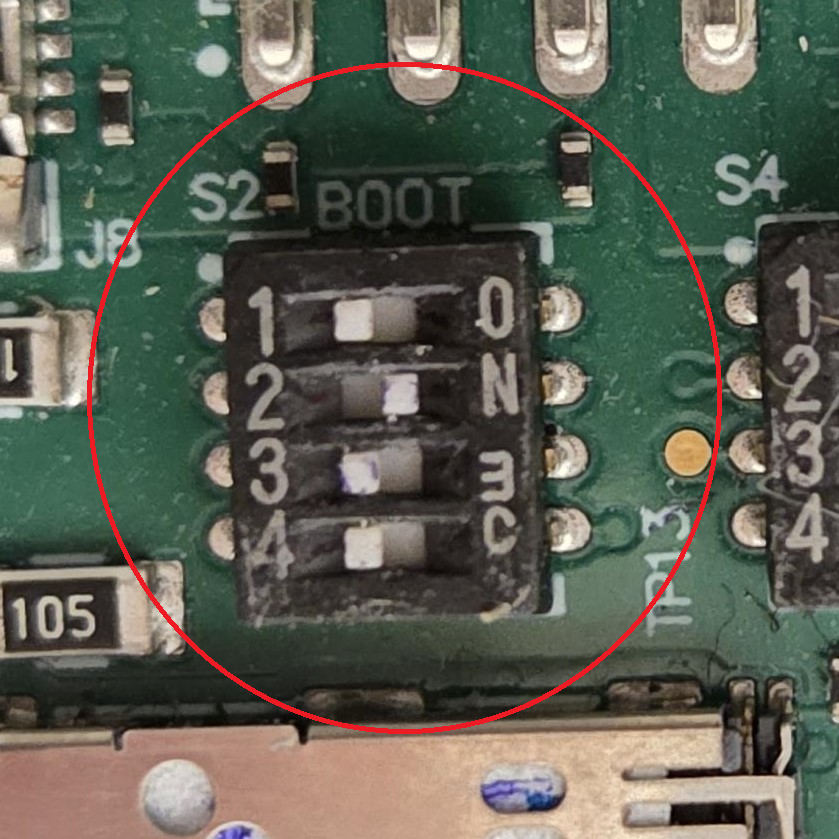
When powering on the VE2302 AI Edge board, the boot mode is selected using the S2 Boot DIP switch. The VE2302 AI Edge board's S2 DIP switch should be set as follows for default booting from the microSD card.
Switch the board to boot from microSD card , set switch S2.1 = 0, S2.2 = 1 and S2.3 = 0.