
Troubleshooting
The following section describes how to troubleshoot common issues.
The QEMU window manager won't accept keystrokes
For some instances, when using QEMU on an Ubuntu GNOME desktop with Wayland display server, the keystrokes for the QEMU window manager aren't recognized (mainly ALT).
Suggested resolution:
To resolve this issue, use the X11 display server instead of Wayland for the Ubuntu GNOME desktop.
To determine if you're using Wayland or X11, do one of the following:
Check the value of the XDG_SESSION_TYPE environment variable:
$ echo $XDG_SESSION_TYPEUse the
xrandrtool to display server sample output. If your system is using Wayland,xrandrdisplays the following:$ xrandr Screen 0: minimum 16 x 16, current 1920 x 1080, maximum 32767 x 32767 XWAYLAND7 connected primary 1920x1080+0+0 (normal left inverted right x axis y axis) 310mm x 170mm 1920x1080 59.96*+ 1440x1080 59.99If your system is using X11,
xrandrdisplays the following:$ xrandr Screen 0: minimum 16 x 16, current 1920 x 1080, maximum 32767 x 32767 DP-0.1 connected 1920x1080+0+0 left (normal left inverted right x axis y axis) 310mm x 170mm 1920x1080 59.96*+ 1440x1080 59.99
If your system is using Wayland, do one of the following options to switch to X11:
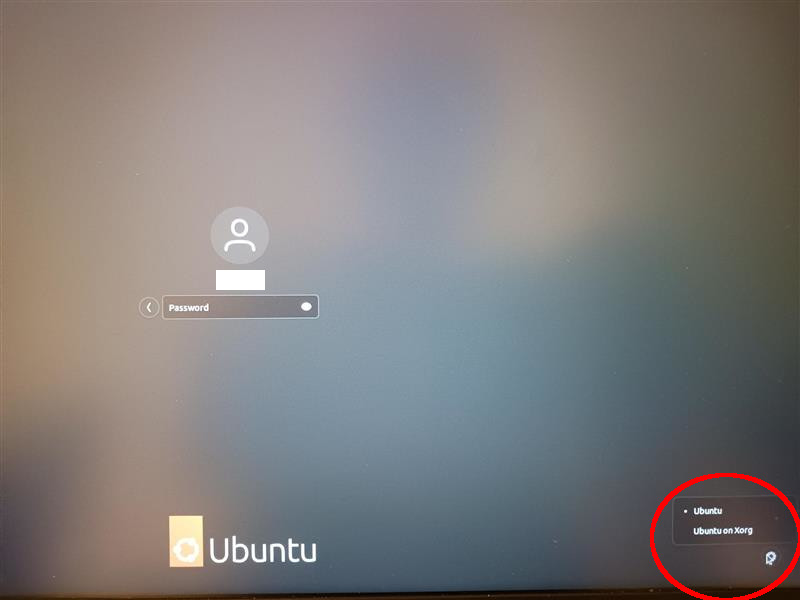
Log out of the Gnome desktop session. Then, in the log in screen, click the gear icon on the bottom right of the screen.
If the options include Ubuntu and Ubuntu on Wayland, choose Ubuntu.
If the options include Ubuntu and Ubuntu on Xorg, choose Ubuntu on Xorg, as shown in the following image:
Alter the display server via
gdm3:Edit the GDM3 configuration file, located at /etc/gdm3/custom.conf
Set the Wayland option in the configuration file:
  # Uncomment the line below to force the login screen to use Xorg
- WaylandEnable=true
+ WaylandEnable=false
Restart the display manager. You can do so by rebooting the computer or using the following command:
sudo systemctl restart gdm3Verify that the active display manager is using X11 by checking the XDG_SESSION_TYPE environment variable or using the
xrandrtool, as described above.
For more information on switching between Wayland and X11, refer to the following links:
Issues trying to update the APK database
During VM boot up, if you see messages indicating that the system is trying to connect to the APK servers, or if you try to run an apk command and it cannot connect to the servers with a DNS error, it means that the VM has an IP address but it cannot reach the internet.
Suggested resolution:
To resolve the issue, you need to shut down the VM, reconfigure the bridge to use a different subnet (e.g., 192.168.122.x), and then update your netplan to recognize that both the subnet and permit DHCP requests for it, as follows:
- Install the
virt-manager:sudo apt-get install virt-manager - Run the
virt-manager:
You may get error sayingvirt-managervirt daemon is not available. Just ignore it. - Close
virt-manager. - Run:
Notice that a new bridge,ifconfigvirbr0, is created. - Once you've performed the reconfiguration, relaunch the VM so that it picks up an address in the new subnet. Internet routing should work now. To confirm it works correctly, run this command:
curl https://www.google.comYou should receive the HTML for the Google home page as a response.
You should also be able to run the following command without errors:
sudo apk updateScreen fails to start up
If your host system has more than 32 GB of RAM, and Screen fails to start up, it could be due to an issue in the underlying PCI driver emulation allocating memory for QEMU.
Suggested resolution:
Ensure that you're defining the physical bits limit for the host. Refer to "Additional QEMU specifications" for more information on setting physical bits.
If you're still having issues starting Screen, ensure that you have all the necessary dependencies required for the QEMU command that you're running. For more information, refer to "Setup build environment" in QEMU's documentation.