
Getting started with QEMU
This section describes how to build, launch, and navigate within QEMU. If you want to run the image with the default resolution (720p) and no Vulkan support, you can skip ahead to the "Launching QEMU" section. However, it's recommended to upgrade to QEMU version 10. Refer to "QEMU version and recommended options" below.
Upgrade to QEMU 10
The following steps describe how to upgrade to QEMU 10:
Install dependencies needed for building QEMU:
- Ubuntu 22.04:
sudo apt install bison flex libepoxy-dev meson ninja-build pkg-config python3-pip python3-venv python3-tomli sphinx sudo apt install libcairo2-dev libgif-dev libglib2.0-dev libjpeg8-dev libpango1.0-dev libpixman-1-dev libsdl2-dev libvirglrenderer-dev - Ubuntu 24.04:
sudo apt install bison flex libepoxy-dev meson ninja-build pkg-config python3-full python3-pip sphinx
sudo apt install libcairo2-dev libgif-dev libglib2.0-dev libjpeg8-dev libpango1.0-dev libpixman-1-dev libsdl2-dev libvirglrenderer-dev
- Ubuntu 22.04:
Install the Vulkan SDK:
- Ubuntu 22.04:
wget -qO- https://packages.lunarg.com/lunarg-signing-key-pub.asc | sudo tee /etc/apt/trusted.gpg.d/lunarg.asc sudo wget -qO /etc/apt/sources.list.d/lunarg-vulkan-jammy.list http://packages.lunarg.com/vulkan/lunarg-vulkan-jammy.list sudo apt update sudo apt install vulkan-sdk - Ubuntu 24.04:
wget -qO- https://packages.lunarg.com/lunarg-signing-key-pub.asc | sudo tee /etc/apt/trusted.gpg.d/lunarg.asc
sudo wget -qO /etc/apt/sources.list.d/lunarg-vulkan-noble.list http://packages.lunarg.com/vulkan/lunarg-vulkan-noble.list
sudo apt update
sudo apt install vulkan-sdk vulkan-tools
- Ubuntu 22.04:
Build an up-to-date libvirglrenderer:
- Ubuntu 22.04:
git clone https://gitlab.freedesktop.org/virgl/virglrenderer.git cd virglrenderer git checkout virglrenderer-1.1.1 meson setup -Dvenus=true build/ sudo meson install -C build - Ubuntu 24.04:
sudo apt remove libvirglrenderer1
git clone https://gitlab.freedesktop.org/virgl/virglrenderer.git
cd virglrenderer
git checkout virglrenderer-1.1.1
meson setup -Dvenus=true build/ --prefix=/usr
sudo meson install -C build
- Ubuntu 22.04:
Ensure the latest
mesapackages are installed:sudo add-apt-repository ppa:kisak/kisak-mesa sudo apt update sudo apt upgrade sudo apt install libsdl2-2.0-0 libsndio7.0 libgl1-mesa-dri libgl1 sudo ldconfigBuild QEMU 10 from source (installs under /usr/local by default):
wget https://download.qemu.org/qemu-10.1.2.tar.xz
tar xvJf qemu-10.1.2.tar.xz
cd qemu-10.1.2
./configure --enable-kvm --enable-opengl --enable-sdl --enable-virglrenderer
make
sudo make install
Add a link under /usr/local for the bridge.conf file. If /etc/qemu/bridge.conf:
Exists, link to it with the following command:
sudo mkdir -p /usr/local/etc/qemu
sudo ln -s /etc/qemu/bridge.conf /usr/local/etc/qemu/bridge.conf
Doesn't exist, create the file and link to it with the following command:
sudo mkdir -p /usr/local/etc/qemu
sudo mkdir -p /etc/qemu
sudo sh -c 'echo "allow virbr0" >> /etc/qemu/bridebridge.conf'
sudo ln -s /etc/qemu/bridge.conf /usr/local/etc/qemu/bridge.conf
Launching QEMU
Source your QNX SDP. Navigate to your SDP installation (typically ~/qnx800) in a terminal and enter:
source qnxsdp-env.shNavigate to the qemu folder that you built in the previous "Get the image" section.
Run the following command to start the VM with the default CPUs (8), default RAM (4GB), default resolution (720p), and no Vulkan support:
mkqnximage --runNote:Some projects may require more RAM to build successfully.
The welcome screen (demolauncher) appears:
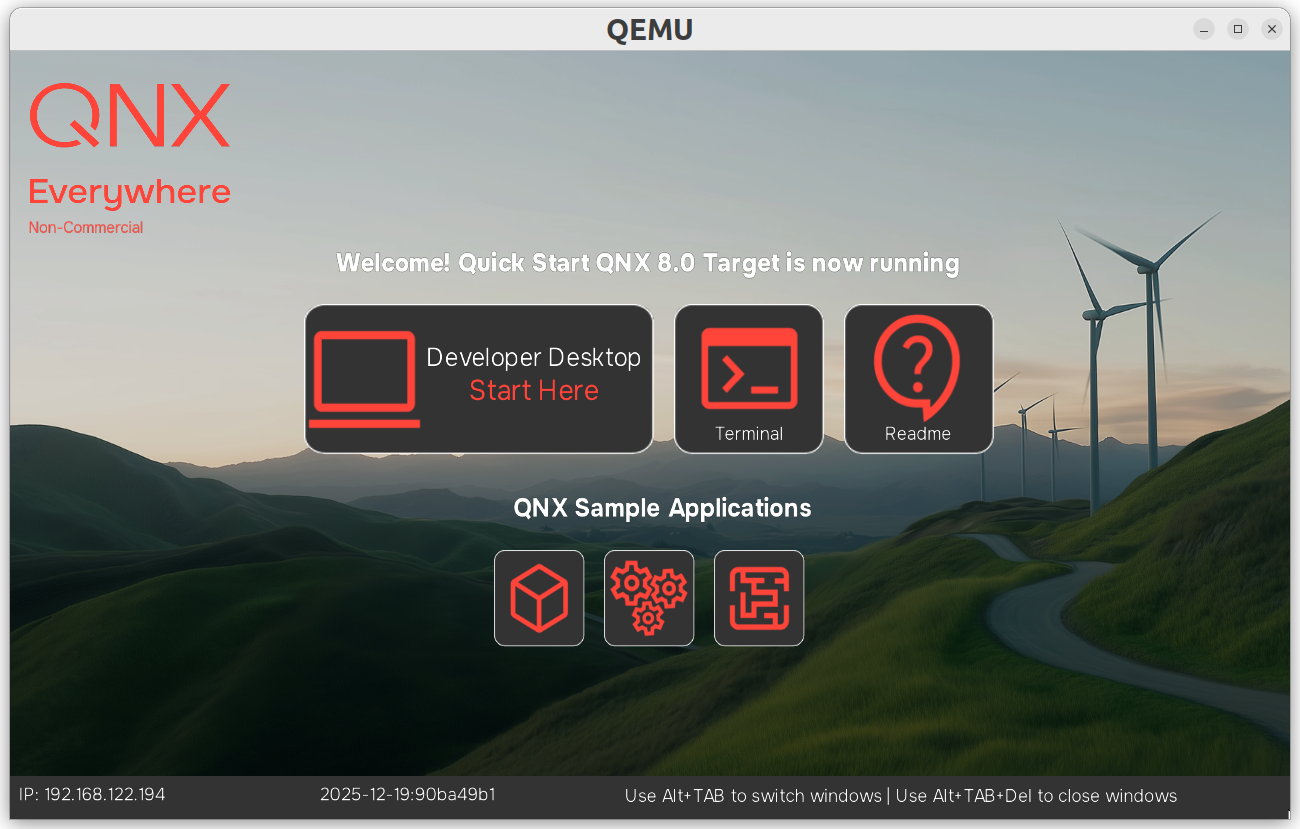
The QNX sample applications available from the welcome screen include:
Feature: Icon: Terminal 
GTK+4 Demo 
QNX Developer Desktop 
GLES gears Demo 
GLES maze Demo 
README 
Navigating QEMU
Getting an IP address
The terminal used to start QEMU becomes a serial console. To get the IP address, you can either:
- Use the serial console to run
ifconfig. - Read the IP address off the display once it updates.
- Use
mkqnximage --getipfrom a different terminal from within the same runtime folder.
Exiting from QEMU
To exit from QEMU, you can do one of the following:
- Enter Ctrl + A + x into the serial console.
- Execute
mkqnximage --stopin a different terminal from within the same runtime folder. - Close the screen window.
QEMU version and recommended options
You can run the following command to find your version of QEMU:
qemu-system-x86_64 --versionThe following table lists recommendations depending on your QEMU version:
| QEMU version | Possible issues | Recommendations |
|---|---|---|
| 10 | None. | All options are available with version 10. |
| 8 | Vulkan performs poorly with occasional artifacts. Occurs most frequently when targeting integrated GPUs. | Avoid Vulkan/Venus support. |
| 6 | OpenGL offloading performs poorly with noticeable and frequent artifacts. | Stick with basic graphical options. |