
Getting Started with BSP Screen
A beginner's guide to locating and applying the screen configuration details to set up your BSP to use graphics.
Screen support packages
A Board Support Package (BSP) provides support for running the QNX OS on a particular hardware platform. The BSP package provides the essential files needed for development on the board, along with extra support and utility files you can choose to install. Additional packages may be needed to support some activities, which may or may not be available for your board. An example is the Screen Support package, a BSP-specific package customized to support graphics on a specific QNX BSP.
You can check the QSC required for the use and development of graphics. For graphics, a BSP Screen Support package is also needed.
Not all boards and BSPs have graphic support available, but you can search the QSC for an appropriate Screen Support Package. This package provides support for a particular board or group of boards, along with the originally downloaded BSP.
A BSP Screen Support package provides the board customization needed to extend a base Screen package to work with the target board and its BSP. There may be other packages needed for the combined support of a board for graphics development. These combinations, and the test hardware configuration can be found in the BSP Screen Release Note.
Screen Support Release Notes
To find the details of what support packages are needed for a Screen BSP Support Package, see the BSP Screen Release Note provided with the BSP Screen Package. The release note will list the packages needed, as well as show the supported hardware setup the embedded system has been tested with.
A BSP Screen Support Release Note provides the following key information:
- The hardware and BSP that this package supports.
- The Package ID for the Screen Support package.
- The Package ID for the required Screen base package.
- The supported hardware configuration this package was tested with.
- Any known issues and available workarounds.
- BSP integration and Screen configuration.
Screen configuration
The default buildfile (bsp-pathname.build) provided with your BSP doesn't build an image that starts the Screen Graphics Subsystem (Screen). Instead, you must use the image that's built from the bsp-screen-pathname-graphics.build file, which starts Screen automatically.
The Screen Graphics Subsystem (Screen) includes the libraries, services and tools required to run graphics applications on the board with supported graphics processors, and to manage graphics shown on the display. To use Screen, you often must configure the graphics and display. To confirm whether Screen is running properly on your target, use the provided demo applications in your BSP package that you can run on the target. This is a brief overview of how to use Screen on your target, but for detailed information, you should refer to the Screen Graphics Subsystem Developer's Guide in the QNX Software Development Platform 8.0 documentation.
Graphics configuration
The specifics of a board’s graphics configuration, such as the target's output display port or the output resolution, are defined in the graphics configuration file (graphics.conf). The graphics configuration file and required Screen binaries are found in the $QNX_TARGET/arch64le/usr/lib/graphics/bsp-filename directory on your host installation. On the target, the same binaries and configuration are typically located at /usr/lib/graphics/bsp-pathname/. Before you start Screen, you must ensure that the LD_LIBRARY_PATH environment variable includes the path to the Screen binaries. In the example buildfile, this has been done for you, but if you haven't done this, you can set the path before starting Screen using these commands:
# export LD_LIBRARY_PATH=/proc/boot:/lib:/usr/lib:/lib/dll:/lib/dll/pci:\
                         /usr/lib/graphics/bsp-filename
# screen -c /usr/lib/graphics/bsp-filename/graphics.conf# slay screen
# screen -c /usr/lib/graphics/$BSP_ID/graphics.confFor more information about the Screen Graphics Subsystem, see the Screen Graphics Subsystem Developer’s Guide in the QNX Software Development Platform 8.0 documentation.
Configure the display for Screen
- 1920x1080 @ 60 (default for HDMI output)
video-mode in the graphics.conf file as shown here:...
...
...
begin display 1
formats = rgba8888, rgbx8888, rgb565, rgba5551, yuy2, uyvy, nv12
video-mode = 1920 x 1080 @ 60
cursor = off
end display
...
...display subsection in the graphics.conf, see Configure display subsectionin the Screen Graphics Subsystem Developer's Guide.
Display driver
The video display configuration library is located on the target at /usr/lib/graphics/bsp-filename/libwfdcfg-bsp-filename.so and /usr/lib/graphics/bsp-filename/libWFD$BSP_ID.so.
Using the GPU
- $QNX_TARGET/aarch64le/usr/lib/graphics/bsp-filename/libglslcompiler.so
- $QNX_TARGET/aarch64le/usr/lib/graphics/bsp-filename/libIMGegl.so
- $QNX_TARGET/aarch64le/usr/lib/graphics/bsp-filename/libIMGGLESv1_CM.so
- $QNX_TARGET/aarch64le/usr/lib/graphics/bsp-filename/libIMGGLESv2.so
- $QNX_TARGET/aarch64le/usr/lib/graphics/bsp-filename/libPVROCL.so
- $QNX_TARGET/aarch64le/usr/lib/graphics/bsp-filename/libPVRScopeServices.so
- $QNX_TARGET/aarch64le/usr/lib/graphics/bsp-filename/libpvrSCREEN_WSEGL.so
- $QNX_TARGET/aarch64le/usr/lib/graphics/bsp-filename/libsrv_km.so
- $QNX_TARGET/aarch64le/usr/lib/graphics/bsp-filename/libsrv_um.so
- $QNX_TARGET/aarch64le/usr/lib/graphics/bsp-filename/libufwriter.so
- $QNX_TARGET/aarch64le/usr/lib/graphics/bsp-filename/libVK_IMG.so
- $QNX_TARGET/aarch64le/usr/lib/graphics/bsp-filename/libWFDbsp-filename.so
- $QNX_TARGET/aarch64le/usr/lib/graphics/bsp-filename/libwfdcfg-bsp-filename.so
- $QNX_TARGET/aarch64le/usr/lib/graphics/bsp-filename/rgx_vulkan_icd.json
- $QNX_TARGET/aarch64le/usr/lib/graphics/bsp-filename/screen-jacinto7-alloc.so
Run Screen applications
The BSP archive contains built-in demo applications that show how to use Screen. It's a good idea to run these demos on your target to confirm that Screen is configured properly and all the necessary drivers are available for Screen to run. If the following demo applications run successfully, it's a good indication that Screen is properly configured on your target.
- sw-vsync
- Shows vsync that uses software rendering, but
doesn't use GLES. This application is useful to verify that
your display works with basic Screen functionality.
Figure 1sw-vsync 
- gles2-gears
- Shows gears that use OpenGL ES 2.X for the rendering API; if gles2-gears
runs, then it confirms that screen and drivers necessary for OpenGL ES 2.x have
started successfully.
Figure 2gles2-gears 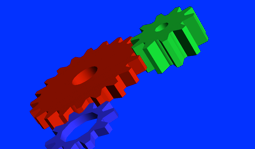
For more information about using the demo applications or debugging them, see the
Utilities and Binaries
and the Debugging
chapters in the Utilities and Binaries
and the Debugging
chapters in the Screen Developer's Guide, respectively.
Create Screen applications
When you create an application that supports Screen, it must link to the Screen library (libscreen.so). This library provides the interfaces for applications to use the Screen API. Depending on the graphical requirements of your application, you may need to link in additional libraries. Below are some of the libraries commonly used when building applications that use Screen:- libEGL
- The interface to access vendor-specific EGL functionality. Refer to the EGL standard from www.khronos.org.
- libGLESv2
- The interface to access vendor-specific OpenGL ES functionality. Refer to the OpenGL ES standard from www.khronos.org.
- libimg
- The interface to load and decode images. For more information, see the Image Library Reference guide in the QNX Software Development Platform 8.0 documentation.
For more information about application development using Screen, see the
Screen Graphics Subsystem Developer’s Guide. For
information about linking libraries, see QNX C/C++ Project properties
in the Reference
chapter of the QNX Momentics IDE User's Guide or the Compiling and Debugging
chapter of the QNX OS
Programmer's Guide.