
Customization
Several customizations are possible with this project. This section reviews the differences in how to use existing customizations and covers some new customizations. After making any of these customizations, you'll need to rebuild the image and flash it to an SD card to then try the changes on a device.
Configuring cURL
A script called updatecacert downloads updated certificates on a live device.
The build itself downloads a fresh set of certificates if a clean operation is performed before a new build.
Keyboard layout
You can make changes to the keyboard layout. For more information, refer to the "Keyboard layout" section of the QSTI chapter. To customize the keyboard layout for the target image refer to the system/usr/lib/graphics/rpi4-drm/graphics-rpi4.conf file.
Display resolution
You can make changes to the display resolution. For more information, refer to the "Display resolution" section of the QSTI chapter. To customize the keyboard layout for the target image refer to system/usr/lib/graphics/rpi4-drm/graphics-rpi4.conf file.
The instructions that rely on runtime commands don't apply for build changes. To make them work for build changes:
- Determine the display resolution.
- Build the image.
- Check via runtime instructions on the device.
- Go back and try the change again.
- Rebuild the image with the correct settings.
Camera
To customize the camera configuration, you can adjust the default configuration by commenting out (or uncommenting) the entries in the post_start.~30.sensor_framework snippet.
For example, comment out the sensor command for the simulator camera:
# Simulator camera i.e. color bars
#sensor -U 521:521,1001 -r /system/share/sensor -c /system/etc/system/config/sensor_demo.conf
Then, uncomment the sensor command for the Raspberry Pi Camera Module v3:
# Camera Module 3
sensor -U 521:521,1001 -b external -r /system/share/sensor -c /system/etc/system/config/camera_module3.conf
Review the other configurations to find the appropriate configuration for any other supported camera that you may have.
Adding binaries
You can add your own prebuilt binaries.
Add the prebuilt binary to the system folder. Alternatively, create a folder or folders with the same relative path as the system partition on the device.
Add an entry (similar to the example below) to system_files.custom.common or to a new partial add-on snippet for the system partition:
bin/gpio-bcm2711=bin/gpio-bcm2711The path to the left of the "=" is the relative path to place the file to /system on the device, and the path to the right is the relative path inside the system folder in this project.
Binaries that are built from open-source projects are installed in the staging area located at src/stage; you need to account for their relative paths from that location for the right side expression. Set the left side of the entry to the relative system path on the device.
Customizing the Welcome screen
You can customize the demolauncher icons and background image on the Welcome screen.
Customizing demolauncher icons
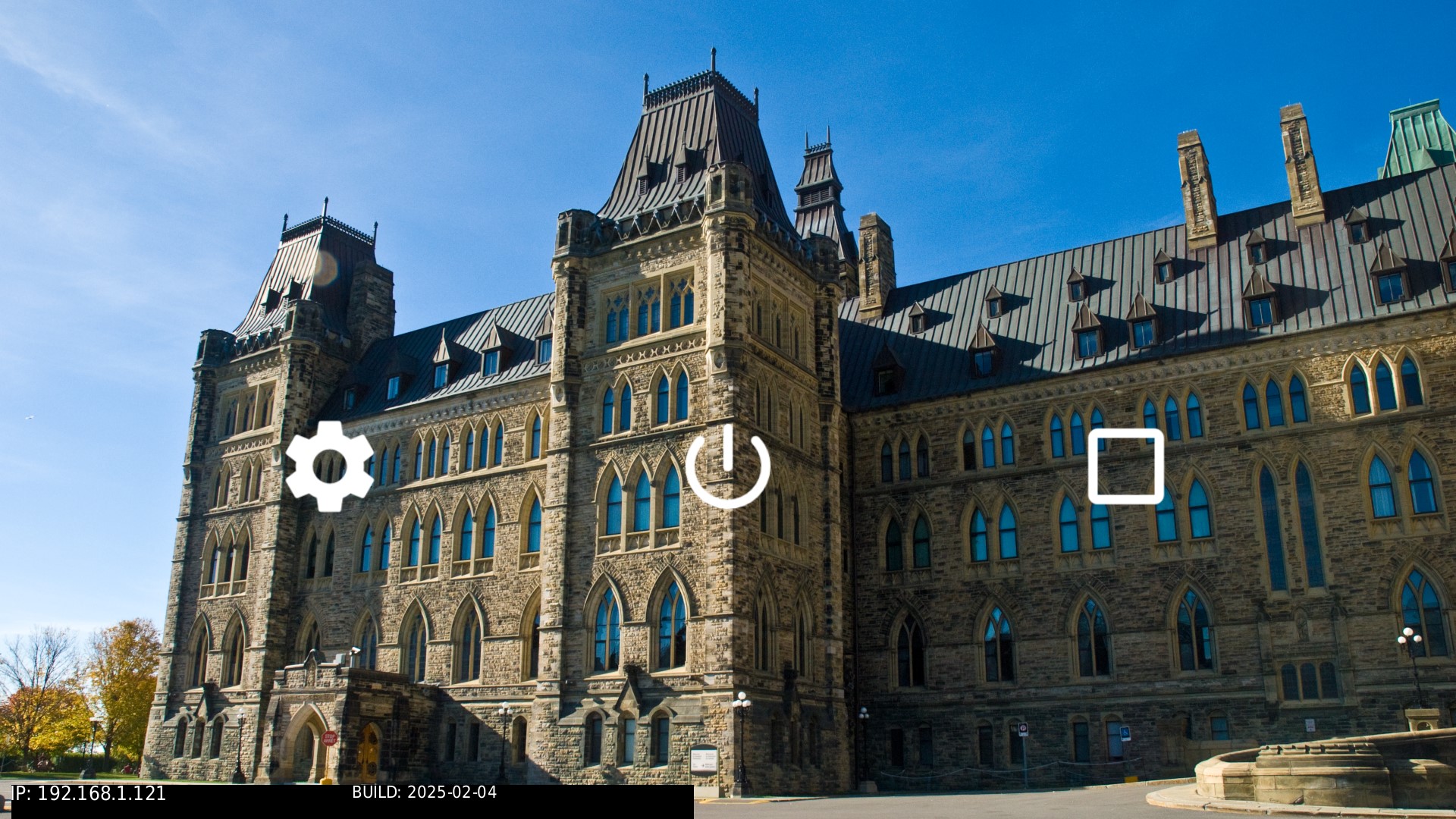
The icons used by the desktop files are integrated in the assets/icon folder. The screenshot below shows how the default demolauncher looks on first boot, without customizations:

To make changes to the Welcome screen placeholder desktop icons, update the system_files.custom.window_managers_demolauncher_config snippet. For more information, refer to the "Customizing the Welcome screen" section of the QSTI chapter.
Customizing the demolauncher background image
You can switch the background image used for the demolauncher to one of your own background images.
To customize the background image:
Look for this portion of the system_files.custom.window_managers_demolauncher_config snippet:
[type=file uid=0 gid=0 perms=0444] etc/images/background_1080p.png=opt/screenwm/images/background_1080p.pngAdd a similar entry for your own image added to the folder system/opt/screenwm/images. This example adds a background image called DSC_0133_1080p.png, following the line above in the snippet:
[type=file uid=0 gid=0 perms=0444] etc/images/DSC_0133_1080p.png=opt/screenwm/images/DSC_0133_1080p.pngNote:This step adds a 1080p image, which works with 1080p displays. If your display is 720p, add a customized 720p image instead.
Update the post_startup.custom snippet to update the demo launcher command to provide the new background image base name.
Look for this line:
demolauncher -a /system/etc/desktop_files &Change it to:
demolauncher -a /system/etc/desktop_files -b /system/etc/images/DSC_0133 &After you rebuild, flash the image to the SD card and boot the device. Notice that the default background image has been replaced with your own:
Switching to the screenwm window manager
You can setup a desktop environment similar to your development host using screenwm.
To use screenwm:
Look for the following lines in the post_start.~40.window_manager snippet:
# enable lines below to run the demolauncher and fullscreen
# window manager
echo "Using Full Screen Window Manager..."
fullscreen-winmgr &
demolauncher -a /system/etc/desktop_files &

# enable lines below to run the screenwm window manager
#echo "Using screenwm Window Manager..."
#screenwm &
Change it to:
# enable lines below to run the demolauncher and fullscreen
# window manager
#echo "Using Full Screen Window Manager..."
#fullscreen-winmgr &
#demolauncher -a /system/etc/desktop_files &

# enable lines below to run the screenwm window manager
echo "Using screenwm Window Manager..."
screenwm &
The code sample above comments out the startup calls to launch screenwm instead.
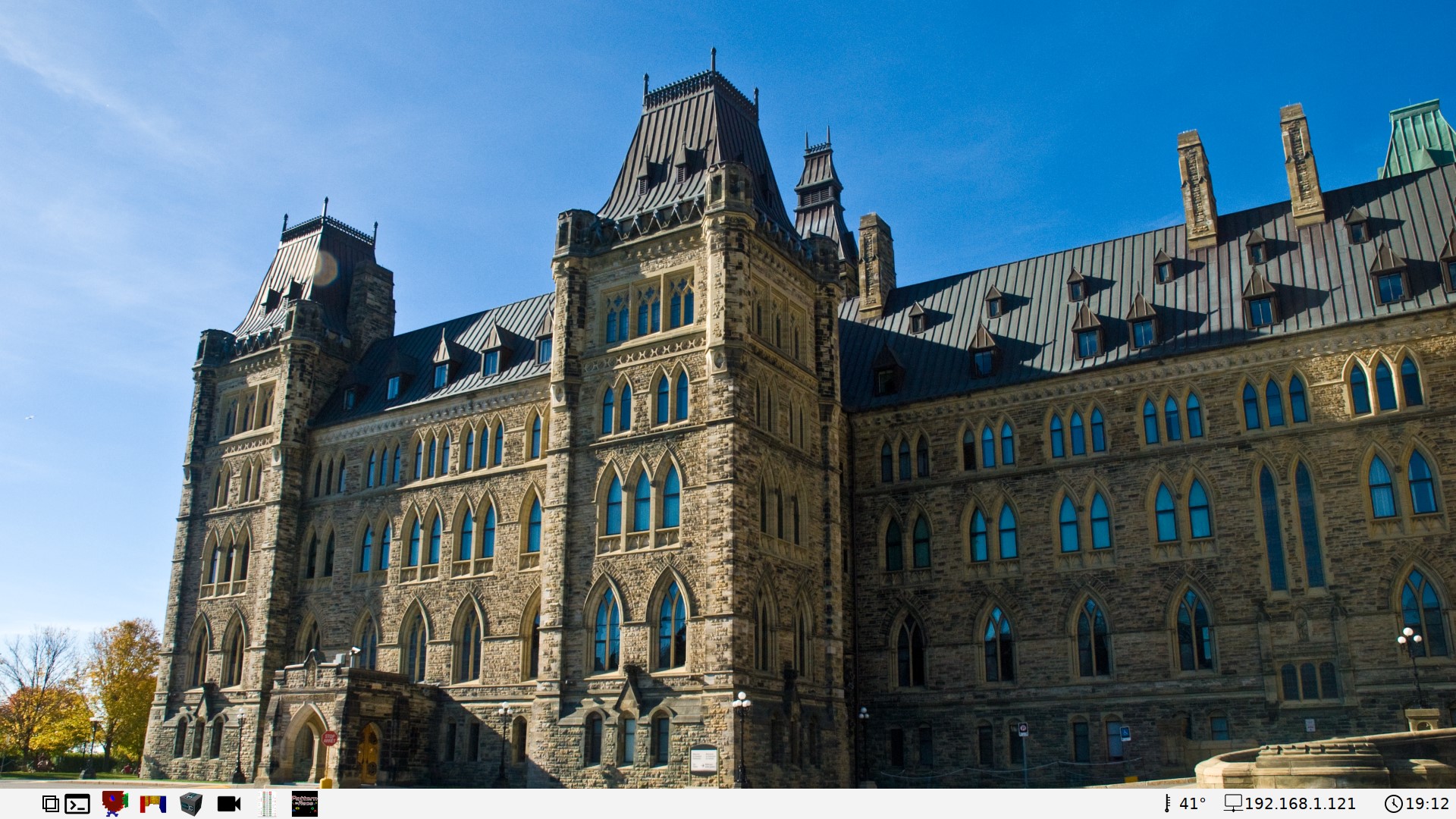
After you rebuild, flash the image to the SD card and boot the device. Note the screenwm desktop with the default background image and default desktop icons:

Note that screenwm does not open full screen borderless windows, so you can open multiple apps in separate smaller windows. Refer to the screenshot below showing the same screen with the terminal and gpioctrl apps running:

Customizing the screenwm desktop icons
You can customize the screenwm desktop icons. When you do this, there is no preset limit to the number of desktop files you can define for dock icons, although you have a set amount of space to work with on the screen, depending on the display resolution.
To customize the icons:
Look for this portion of the system_files.custom.window_managers_screenwm snippet:
[type=file uid=0 gid=0 perms=0644] opt/screenwm/terminal.desktop={
[Desktop Entry]
Name=Terminal
Exec=/system/bin/st /system/etc/st_boot.sh
Icon=/system/share/icons/terminal_black.png
Categories=Utilities
}
[type=file uid=0 gid=0 perms=0644] opt/screenwm/gears.desktop={
[Desktop Entry]
Name=Gears
GenericName=gles2-gears
Exec=/system/bin/gles2-gears
Icon=/system/share/icons/gles2-gears.png
Categories=Utilities
}
[type=file uid=0 gid=0 perms=0644] opt/screenwm/maze.desktop={
[Desktop Entry]
Name=Maze
GenericName=gles2-maze
Exec=/system/bin/gles2-maze
Icon=/system/share/icons/gles2-maze.png
Categories=Utilities
}
[type=file uid=0 gid=0 perms=0644] opt/screenwm/cube.desktop={
[Desktop Entry]
Name=Cube
GenericName=vkcubepp
Exec=/system/bin/vkcubepp
Icon=/system/share/icons/vkcube.png
Categories=Utilities
}
[type=file uid=0 gid=0 perms=0644] opt/screenwm/camera.desktop={
[Desktop Entry]
Name=Camera_Viewfinder
GenericName=camera_example
Exec=/system/bin/camera_example3_viewfinder
Icon=/system/share/icons/google/video_icon_black.png
Categories=Utilities
}
[type=file uid=0 gid=0 perms=0644] opt/screenwm/gpioctrl.desktop={
[Desktop Entry]
Name=GPIO-Controller
GenericName=gpioctrl
Exec=/system/bin/gpioctrl
Icon=/system/share/icons/gpioctrl.png
Categories=Utilities
}
[type=file uid=0 gid=0 perms=0644] opt/screenwm/patrace.desktop={
[Desktop Entry]
Name=Pattern Race
GenericName=patrace
Exec=/system/bin/patrace
Icon=/system/share/icons/patrace.png
Categories=Games
}
Swap out some of the color icons with flatter black Google Material Design icons:
[type=file uid=0 gid=0 perms=0644] opt/screenwm/terminal.desktop={
[Desktop Entry]
Name=Terminal
Exec=/system/bin/st /system/etc/st_boot.sh
Icon=/system/share/icons/terminal_black.png
Categories=Utilities
}
[type=file uid=0 gid=0 perms=0644] opt/screenwm/gears.desktop={
[Desktop Entry]
Name=Gears
GenericName=gles2-gears
Exec=/system/bin/gles2-gears
Icon=/system/share/icons/google/gears_icon_black.png
Categories=Utilities
}
[type=file uid=0 gid=0 perms=0644] opt/screenwm/maze.desktop={
[Desktop Entry]
Name=Maze
GenericName=gles2-maze
Exec=/system/bin/gles2-maze
Icon=/system/share/icons/google/maze_icon_black.png
Categories=Utilities
}
[type=file uid=0 gid=0 perms=0644] opt/screenwm/cube.desktop={
[Desktop Entry]
Name=Cube
GenericName=vkcubepp
Exec=/system/bin/vkcubepp
Icon=/system/share/icons/google/cube_icon_black.png
Categories=Utilities
}
[type=file uid=0 gid=0 perms=0644] opt/screenwm/camera.desktop={
[Desktop Entry]
Name=Camera_Viewfinder
GenericName=camera_example
Exec=/system/bin/camera_example3_viewfinder
Icon=/system/share/icons/google/video_icon_black.png
Categories=Utilities
}
[type=file uid=0 gid=0 perms=0644] opt/screenwm/gpioctrl.desktop={
[Desktop Entry]
Name=GPIO-Controller
GenericName=gpioctrl
Exec=/system/bin/gpioctrl
Icon=/system/share/icons/gpioctrl.png
Categories=Utilities
}
[type=file uid=0 gid=0 perms=0644] opt/screenwm/patrace.desktop={
[Desktop Entry]
Name=Pattern Race
GenericName=patrace
Exec=/system/bin/patrace
Icon=/system/share/icons/patrace.png
Categories=Games
}
Refer to the screenshot below showing screenwm with the updated desktop icons:

Customizing the screenwm background image
You can also switch the background image used by screenwm to one of your own background images.
To switch the background images:
Add the new background image to the window managers snippet.
Look for this portion of the system_files.custom.window_managers_screenwm snippet:
[type=file uid=0 gid=0 perms=0644] opt/screenwm/screenwm.ini={
[General]
background=images/background_1080p.png
taskbar=bottom
screenIdle=20
}
This creates the screenwm configuration file.
Modify the entry to point to your own image added to the folder assets/images. This example adds a background image called DSC_0133_1080p.png:
[type=file uid=0 gid=0 perms=0644] opt/screenwm/screenwm.ini={ [General] background=images/DSC_0133_1080p.png taskbar=bottom screenIdle=20 }Note:This step adds a 1080p image, which works with 1080p displays. If your display is 720p, add a customized 720p image instead.
Modify the system_files.custom.window_managers_screenwm snippet to include your image file into the target image that gets created. Add a line like the following:
[type=file uid=0 gid=0 perms=0444] etc/images/DSC_0133_1080p.png=images/DSC_0133_1080p.pngAfter you rebuild, flash the image to the SD card and boot the device. Notice that the default background image has been replaced with your own:
Thermal throttling
You can check the CPU temperature. For more information, refer to the "Thermal throttling" section of the QSTI chapter.
When screenwm is enabled with some of the customizations described above, the CPU temperature is displayed in the screenwm dock at the bottom right of the screen, as shown in the screenwm screenshots. This provides another method of monitoring the CPU temperature.
Audio
You can play, record, and convert audio files. For more information, refer to the "Audio" section of the QSTI chapter.
Touchscreen
You can adjust the touchscreen configuration. For more information, refer to the "Touchscreen" section of the QSTI chapter. To customize the touchscreen configuration for the target image refer to the system/etc/system/config/mtouch.conf file.
The project's mtouch.conf can be directly populated with the configuration info for one of the tested touch screens listed in the "Required hardware" section of the QSTI introduction. Otherwise, you may want to flash the image with this file unpopulated to collect the information you need to fill in the correct parameters for your touchscreen.
For example, the following is the configuration for a Waveshare WS170120 touchscreen:
begin mtouch
  driver = hid
  display = hdmi
  options=verbose=11,vid=0x0eef,did=0x0005,verbose=6,width=4096,height=4096,max_touchpoints=5

  scaling = /system/etc/system/config/scaling.conf
end mtouch
If you have the same touchscreen, you can paste this into the project's mtouch.conf and then rebuild the project to test if the touch screen works.
Of the two window manager options, only the demolauncher and full screen window manager combination handles touch input. screenwm doesn't support touch input at this time.