
fonts
Integration approach
Follow this general approach to download and integrate fonts:
Add a Makefile target to clone a fonts repo, or in some cases, download a release package generated from the repo. Sometimes the latter is faster, depending on the size of the repo and its change history.
Unpack the fonts package into a folder, if required. Note that it is best to use the folder name of the unpacked package, or the repo folder, as the target name so that the download doesn't repeat if a previous build completed the download. This is more efficient, but it also means you need to perform a clean operation with
maketo forcibly update the contents, if it comes from a git repo.Add a Makefile target to copy the downloaded fonts to the ttf_otf fonts folder. This folder is included as a whole into the following locations on the Raspberry Pi 4:
- /system/share/fonts
- /usr/share/fonts
Add the new
maketarget for the fonts being integrated as a dependency to thealltarget, so that it builds by default.To ensure the fonts are properly installed, the startup script updates to refresh the font cache on boot.
Finally, to ensure the new fonts and related artifacts are properly cleaned, add the names of all downloaded artifacts, unpacked folders, and newly created folders to the
cleantarget.
Font integrations
fontconfig
The /system/etc/fontconfig folder for the Raspberry Pi 4 is generated as follows:
- The fonts engine package is installed from QNX Software Center to integrate the base fontconfig binaries and configuration.
- The fontconfig files are downloaded from the QNX ports fontconfig repository on GitHub: https://github.com/qnx-ports/fontconfig.git).
- Any font packages with their own fontconfig files are mixed in with the conf.avail folder from the above download.
- A conf.d folder that contains soft links to all files in conf.avail is generated and then the local fontconfig folder is imported into the image.
DejaVu Fonts
The currently available QSTI already includes some DejaVu fonts. The repository where these fonts are located also include some additional DejaVu fonts for international characters and math symbols.
The DejaVu fonts site, where you can go obtain the latest fonts, is: https://dejavu-fonts.github.io/
Google Fonts
Google has sponsored the creation of many useful free fonts for mobile platforms and web applications.
Refer to the Google Fonts website to view their fonts: https://fonts.google.com/
Refer to the repo containing the source fonts: https://github.com/google/fonts/tree/main
It's faster to download and unpack a zip distribution using the Makefile rather than cloning the git repo.
Note that, unlike the DejaVu fonts, Google fonts in the repo downloaded are mainly variable True Type fonts. Depending on the naming scheme, certain attributes can be adjusted after loading with either the FreeType or SDL_ttf APIs. Static versions of the fonts are only available to download manually from the Google Fonts site, or in an automated fashion via Google APIs that require an API key to access. QNX chose not to obtain fonts this way for simplicity, but you are free to change how to obtain Google fonts for your own build variant.
Example integration: Roboto fonts
You can integrate Roboto fonts with your project. To integrate the fonts:
First, add a target to the Makefile to download the google_fonts package:
google_fonts:
    wget https://github.com/google/fonts/archive/main.zip
    unzip main.zip
    mv fonts-main google_fonts
    $(RM_HOST) -rf main.zip
This example renames the folder to differentiate that it was from Google.
The above excerpt also unpacks the fonts package into a folder. Note that the target name matches the folder name of the unpacked package (when the version value is expanded). The zip file downloaded is also deleted to avoid a remnant package remaining and complicating a rebuild after cleaning.
Add the following target to copy the Roboto fonts to the folder that is integrated into the system partition:
google_roboto: google_fonts
    cp google_fonts/ofl/robotomono/RobotoMono-Italic[wght].ttf ttf_otf
    cp google_fonts/ofl/robotomono/RobotoMono[wght].ttf ttf_otf
    cp google_fonts/apache/robotoslab/RobotoSlab[wght].ttf ttf_otf
    cp google_fonts/axisregistry/tests/data/RobotoFlex[GRAD,XOPQ,XTRA,YOPQ,YTAS,YTDE,YTFI,YTLC,YTUC,opsz,slnt,wdth,wght].ttf ttf_otf
    cp google_fonts/ofl/robotoserif/RobotoSerif-Italic[GRAD,opsz,wdth,wght].ttf ttf_otf
    cp google_fonts/ofl/robotoserif/RobotoSerif[GRAD,opsz,wdth,wght].ttf ttf_otf
    cp google_fonts/ofl/roboto/Roboto-Italic[wdth,wght].ttf ttf_otf
    cp google_fonts/ofl/roboto/Roboto[wdth,wght].ttf ttf_otf
    cp google_fonts/ofl/robotoflex/RobotoFlex[GRAD,XOPQ,XTRA,YOPQ,YTAS,YTDE,YTFI,YTLC,YTUC,opsz,slnt,wdth,wght].ttf ttf_otf
    cp google_fonts/ofl/robotocondensed/RobotoCondensed-Italic[wght].ttf ttf_otf
    cp google_fonts/ofl/robotocondensed/RobotoCondensed[wght].ttf ttf_otf
This target depends on the
google_fontstarget having been installed first, before proceeding to integrate the Roboto fonts.You can add similar targets for any other Google fonts that you want to integrate.
Add the new target as a dependency to the
alltarget:all: setup_dirs dejavu-fonts-ttf-$(DEJAVU_VERSION) dejavu-lgc-fonts-ttf-$(DEJAVU_VERSION) google_roboto fontawesome-free-$(FONT_AWESOME_VERSION)-desktop setup_confdFinally, add the newly downloaded artifacts, unpackaged folders, and newly created folders to the
cleantarget:clean: $(RM_HOST) -rf dejavu-fonts-ttf-$(DEJAVU_VERSION)* dejavu-lgc-fonts-ttf-$(DEJAVU_VERSION)* fontawesome-free-$(FONT_AWESOME_VERSION)-desktop* fontconfig ttf_otf *_fonts fonts-main main.zip
In case the project build is interrupted during the execution of targets that may be renaming or deleting packages and folders, it's best practice to add interim artifact names to the clean target.
Font Awesome Desktop Fonts (free edition)
Font Awesome is best known for their web fonts and provide a great collection of useful icons for web application user interfaces. Their web fonts are also available for the desktop. Three of their OpenType fonts are available for free download from their website: https://docs.fontawesome.com/desktop/setup/get-started
Visit Font Awesome's icons page to browse the icons available in the fonts: https://fontawesome.com/icons. The font code represents the unicode character represented by that icon's character in the font that contains it. You'll need that information to assemble the unicode or UTF-8 string to render the icon, once it's installed in the image.
Note that the Pro icons are only available with the Pro fonts after you purchase a license.
OpenType fonts contain True Type fonts, so they are supported by the FreeType library integrated into the QSTI.
Other Sources for Free Fonts
There are a number of sources of open-source and free fonts that you can explore. Here are a few sources that weren't included:
- OpenFoundry: https://www.google.com/url?sa=t&source=web&rct=j&opi=89978449&url=https://open-foundry.com/&ved=2ahUKEwi1mJOF56CMAxWhFjQIHTXDE0UQFnoECBsQAQ&usg=AOvVaw1YGvdHClzIREgvzKKFoqe-
- Adobe Open Source Fonts: https://fonts.adobe.com/foundries/open-source
- The League of Movable Type: https://www.google.com/url?sa=t&source=web&rct=j&opi=89978449&url=https://www.theleagueofmoveabletype.com/&ved=2ahUKEwi1mJOF56CMAxWhFjQIHTXDE0UQFnoECDMQAQ&usg=AOvVaw0q9j8an7Vy4JuExqa1Mx5C
- FontShare open-source fonts: https://www.google.com/url?sa=t&source=web&rct=j&opi=89978449&url=https://fontshare.com/licenses/sil-ofl&ved=2ahUKEwi1mJOF56CMAxWhFjQIHTXDE0UQFnoECC8QAQ&usg=AOvVaw0vsiJXXBqlDg3XT4wJ35r0
The showfont utility
A utility application called showfont is integrated into the image. This application allows you to render fonts using either the default or custom text and sizes.
This utility is useful to check that integrated fonts are correctly integrated into the image. Refer to the example commands below and associated screenshots, which confirm the integrated fonts are working correctly in your generated image.
Usage:
qnxuser@qnxpi:~$ showfont
INFO: Usage: showfont [-solid] [-shaded] [-blended] [-wrapped] [-utf8|-unicode] [-b] [-i] [-u] [-s] [-outline size] [-hintlight|-hintmono|-hintnone] [-nokerning] [-wrap] [-fgcol r,g,b,a] [-bgcol r,g,b,a] <font>.ttf [ptsize] [text]
Examples
DejaVu LGC Sans Bold font
Run the following command to confirm that select Greek, Cyrillic, and Coptic characters from one of the new DejaVu fonts renders correctly:
showfont -utf8 /usr/share/fonts/DejaVuLGCSans-Bold.ttf 30 "πΦϢ ЂЖϠ Ω"In the event that this command doesn't work because the special characters pasted aren't preserved, you may need to copy and paste the characters from another source, such as this web page https://www.utf8-chartable.de/unicode-utf8-table.pl.
Once you are successful in executing the command, the following will be displayed on the screen:

DejaVu Math Tex Gyre font
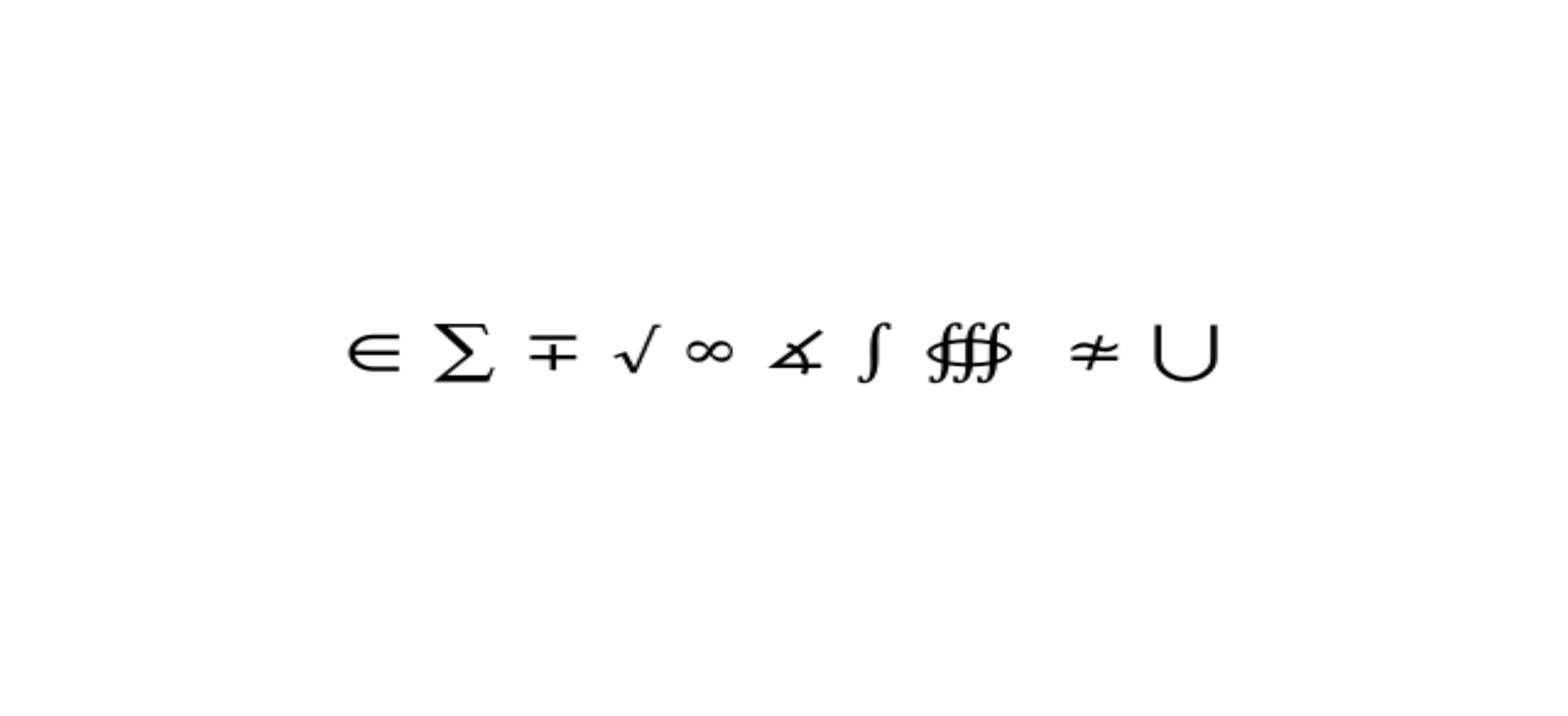
Run the following command to confirm that select mathematical symbols from another of the new DejaVu fonts renders correctly:
showfont -utf8 /usr/share/fonts/DejaVuLGCSans-Bold.ttf 30 "∊ ∑ ∓ √ ∞ ∡ ∫ ∰ ≄ ⋃"In the event that this command doesn't work because the special characters pasted aren't preserved, you may need to copy and paste the characters from another source, such as this web page https://www.utf8-chartable.de/unicode-utf8-table.pl.
Once you are successful in executing the command, the following will be displayed on the screen:
Google Roboto Condensed Italic font
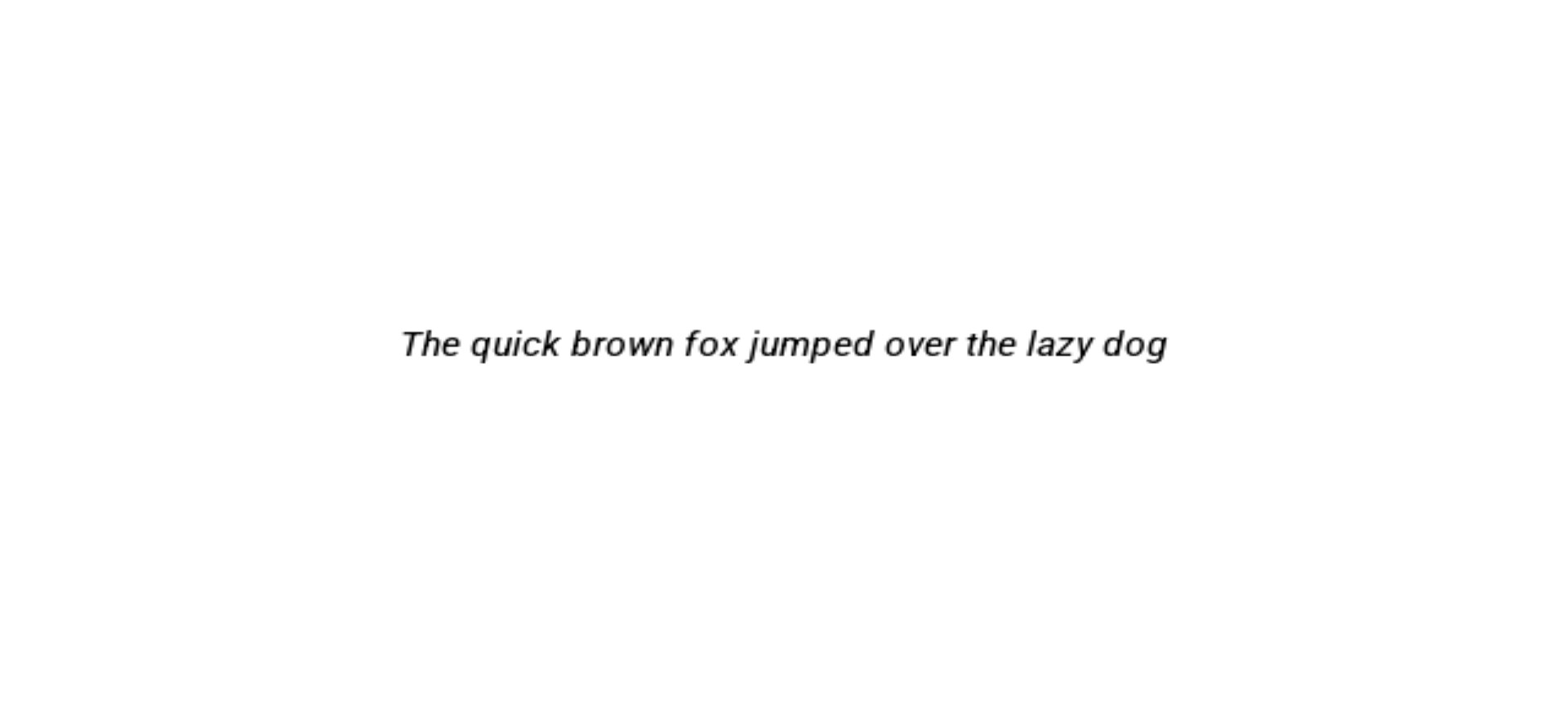
Run the following command to confirm that one of the Google Roboto fonts integrated, specifically the Condensed Italic font, renders correctly.
showfont /usr/share/fonts/RobotoCondensed-Italic[wght].ttfThe following will be displayed on the screen after executing the command:
FontAwesome GitHub brand icon
Run the following command to test rendering the GitHub icon from the Font Awesome 6 Brands font:
showfont -utf8 /usr/share/fonts/Font\ Awesome\ 6\ Brands-Regular-400.otf 100 The GitHub icon isn't preserved in the command above, but should still work if you copy and paste it.
In the event that this command doesn't work because the special character pasted isn't preserved, you may need to use a utility to copy and paste the unicode character f09b in place of the character at the end of the command.
Once you are successful in executing the command, the following will be displayed on the screen:
