![[Previous]](prev.gif) |
![[Contents]](contents.gif) |
![[Index]](keyword_index.gif) |
![[Next]](next.gif) |
|
|
|
|
 |
This version of this document is no longer maintained. For the latest documentation, see http://www.qnx.com/developers/docs. |
In this chapter:
Subversion (SVN) and CVS are the default source control management systems in the IDE. Other systems, such as ClearCase, may also be used.
The IDE lets you “undo” changes with its local history. While you're working on your code, the IDE automatically keeps track of the changes you make to your file; it lets you roll back to an earlier version of a file that you saved but didn't commit to source control.
For more information about the IDE's local history feature, see this link in the Workbench User Guide: .
For each project, the IDE stores important information in these files:
You must include both of these files with your project when you commit your changes into source control.
The Subversive plugin (or Subclipse, see the http://www.eclipse.org Web site) provides Subversion (SVN) integration for the IDE. The SVN plugin gives you the ability to work with this version-control system from the IDE workbench.
The SVN Repository Exploring perspective in the IDE workbench lets you bring code from SVN into your IDE workspace. Other developers can then make updates the source in SVN while you're working on a file. The SVN Repository Exploring perspective lets you easily check your modified code back into SVN, and the IDE helps you synchronize with SVN to resolve any conflicts you might encounter.
 |
If you start use SVN with a currently checked-out project, you need to disconnect the project first. Select the project and click , and then select Do not delete the SVN meta information in the Disconnect dialog so that the SVN working copy won't be deleted. As a result, you can use this working copy later with SVN and avoid the re-checkout process. Now, you can connect the project to the repository using SVN. Select the project and click . Select the SVN provider from the Share Project wizard; later you'll be prompted to choose the SVN location. If you have project checked out by another SVN client (i.e. the project contains .svn folders), you can import it directly into your workspace, which causes an automatic connection to SVN if the appropriate SVN location is found. To import a project into your workspace, select , expand General and select Existing projects into Workspace. Browse to the location of the project and select it. If you edit a file outside of the IDE, the SVN plugin doesn't see the file changes. To refresh the file(s), you'll need to highlight the project node, and then press F5. |
The CVS Repository Exploring perspective lets you bring code from CVS into your workspace. If another developer changes the source in CVS while you're working on it, the IDE helps you synchronize with CVS and resolve any conflicts. You can also choose to automatically notify the CVS server whenever you start working on a file. The CVS server then notifies other developers who work on that file as well. Finally, the CVS Repository Exploring perspective lets you check your modified code back into CVS.
|
The IDE connects to CVS repositories that reside only on remote servers — you can't have a local CVS repository (i.e. one that resides on your host computer) unless it's set up to allow CVS pserver, ext, or extssh connections. |
Since the CVS Repository Exploring and the SVN Repository Exploring perspectives are core Eclipse features, you'll find complete documentation in the Eclipse Workbench User Guide and the Subversive User Guide.
For SVN, the following table may help you find information quickly in the Subversive User Guide:
| If you want to: | Go to: |
|---|---|
| Find the information on everyday work with SVN | Team support with SVN |
| Connect to a SVN repository | |
| Show only those SVN repositories associated with your Workbench | |
| Check code out of SVN | |
| Synchronize with a SVN repository | |
| Ignore some resources while synchronizing | |
| See who's also working on a file | |
| See changes made by another user | |
| Resolve SVN conflicts | |
| Prevent certain files from being committed to SVN | |
| Create and apply a patch | |
| Track code changes that haven't been committed to SVN | |
| Change a file to a base revision |
For CVS, follow these links:
The following table may help you find information quickly in the Workbench User Guide:
| If you want to: | Go to: |
|---|---|
| Connect to a CVS repository | |
| Check code out of CVS | |
| Synchronize with a CVS repository | , particularly the Updating section |
| See who's also working on a file | |
| Resolve CVS conflicts | |
| Prevent certain files from being committed to CVS | |
| Create and apply a patch | |
| Track code changes that haven't been committed to CVS | , especially the Comparing resources with the local history section |
| View an online FAQ about the CVS Repository Exploring perspective |
As with many tasks within the IDE, there's more than one method to bring existing source files into your workspace:
|
Whichever method you use to bring existing source files into your workspace, you always need to set up an IDE project in your workspace in order to work with the resources you're importing. For instructions about creating a project, see “Step 1: Creating an initial project for your source code.” |
If you're importing code that uses an existing build system, you may need to provide a Makefile with all: and clean: targets that call your existing build system.
For example, if you're using the jam tool to build your application, your IDE project Makefile might look like this:
all:
    jam -fbuild.jam

clean:
    jam -fbuild.jam clean
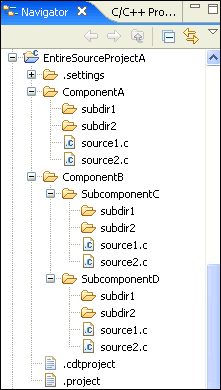
The source hierarchy for your code may be complex. For example, suppose the source hierarchy looks like this:
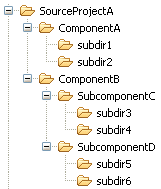
Example of a source tree hierarchy.
To work efficiently with this source in the IDE, each component and subcomponent should be a “subproject” within the one main project. (You could keep an entire hierarchy as a single project if you wish, but you'd probably find it cumbersome to build and work with such a monolith.)
The current version of the IDE doesn't support nesting projects as such; however, to import such a source tree, you would use the following process:
For information about container projects, see “Using container projects” in this chapter.
You need to create a project that will contain your source code and related files. (The project will have an associated builder that incrementally compiles source files as they change.)
First, in your workspace, create a single project that reflects all the components that reside in your existing source tree:
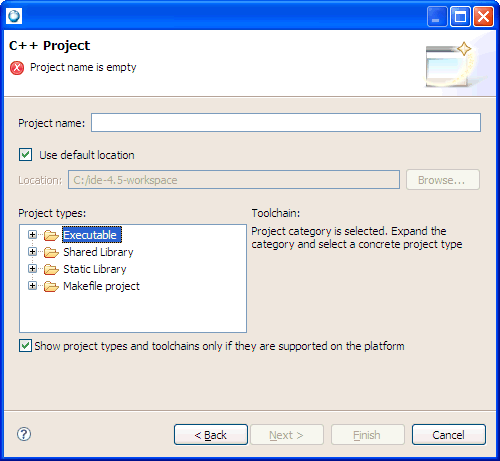
By default, the C/C++ Development Tool (CDT) filters the Toolchain and Project types that show in the resulting lists based on the language support for the project type you select.
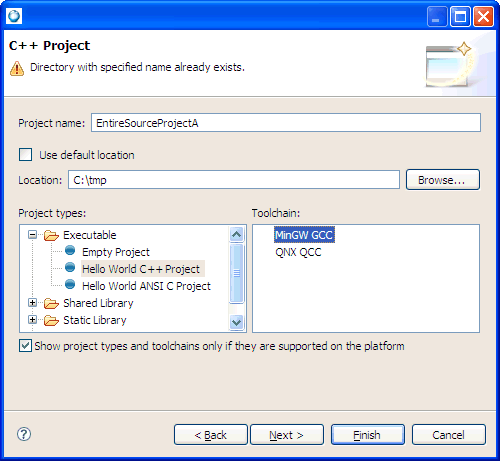
Next, you want to select a template for your project from the following:
After specifying a template, the workbench creates a project with only the metadata files required for your project type. Now, you can modify these source files, as required, and provide the source files for the project's target. Note that for an Executable project type, a makefile is automatically created for you.
By default, the Toolchain and template types that are currently shown in the lists are based on the language support for the project type that you selected.
Now, you need to create an individual project (via ) for each of the existing projects (or components) in your source tree. In this example, you'd create a separate project for each of the following source components:
To create individual projects:
Next, you'll link each individual project in the IDE to its corresponding directory in the source tree:
To link projects:
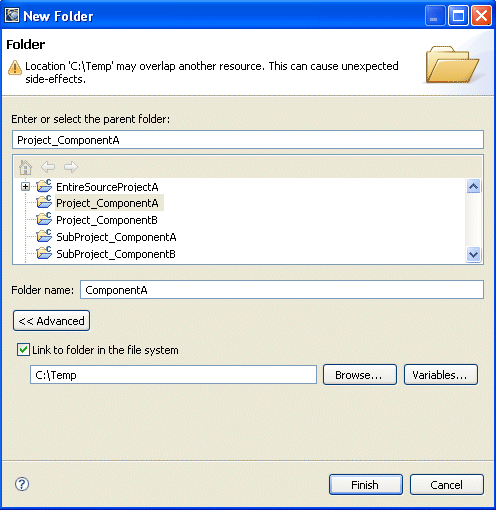
Now, you need to tell the IDE to build Project_ComponentA in the ComponentA linked folder that you just created in your workspace:
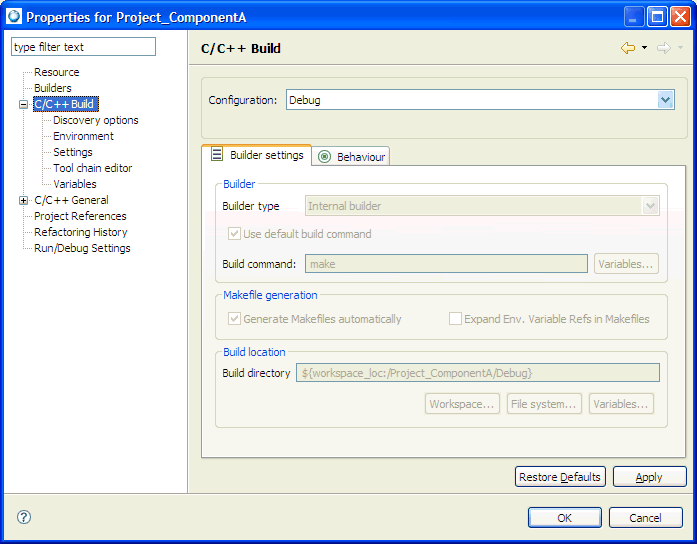
Now, when you start to build Project_ComponentA, the IDE builds it in the ComponentA folder in your workspace (even though the source actually resides in a folder outside your workspace).
|
Linked resources let you overlap
files in your workspace, so files from one project can
appear in another project. If you
change a file or other resource in one location, the
duplicate resource is also affected. For example, if you
delete a duplicate resource, its original is also
deleted.
Special rules apply when working with linked resources. Since a linked resource must reside directly below a project, you can't copy or move a linked resource into other folders. If you delete a linked resource from your project, the corresponding resource in the filesystem also isn't deleted. But if you delete child resources of linked folders, those child resources are deleted from the filesystem! |
On Windows hosts, you can select files or folders and drop them into projects in the Navigator view:
|
From Windows Explorer, you can also use Cut, Copy, and Paste to move or copy files into a project. |
Using the SVN Repository Exploring perspective, you can check out modules or directories into existing projects, or into new projects.
Using the CVS Repository Exploring perspective, you can check out modules or directories into existing projects, or into new projects.
Importing code into the IDE from CVS or SVN differs slightly depending on what you're importing:
To check out an existing C/C++ project (either a QNX, C, or C++ project) from the CVS repository into your workspace:
The IDE creates a project with the same name as the CVS module in your workspace. The project is automatically recognized as a C/C++ or QNX C/C++ project (if the project has .project and .cdtproject files).

To check out an existing C/C++ project (either a QNX, C, or C++ project) from the SVN repository into your workspace:
The IDE creates a project with the same name as the SVN module in your workspace. The project is automatically recognized as a C/C++ or QNX C/C++ project (if the project has .project and .cdtproject files).
To check out existing C/C++ code that isn't part of a CVS project:
The IDE shows the Check Out As wizard.
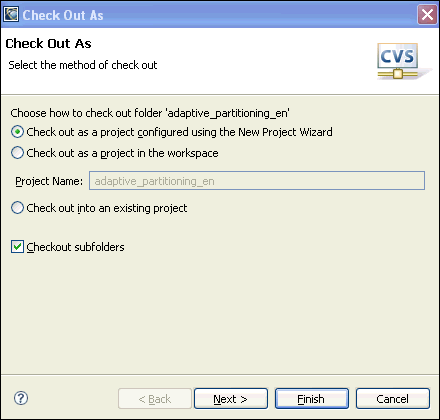
The Check Out As wizard.
or:
or:
To check out existing C/C++ code that isn't part of a SVN project:
The IDE shows the Check Out As wizard:
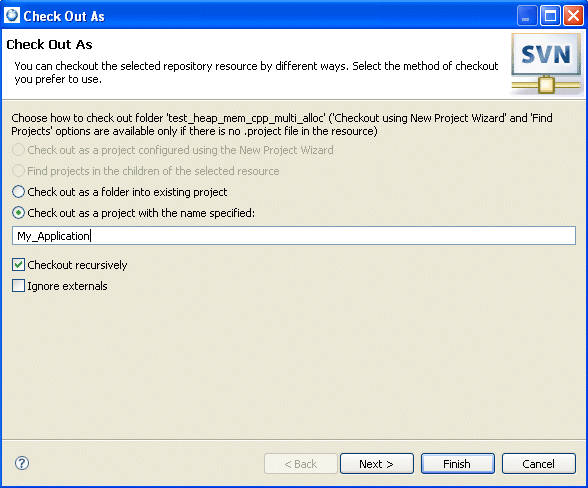
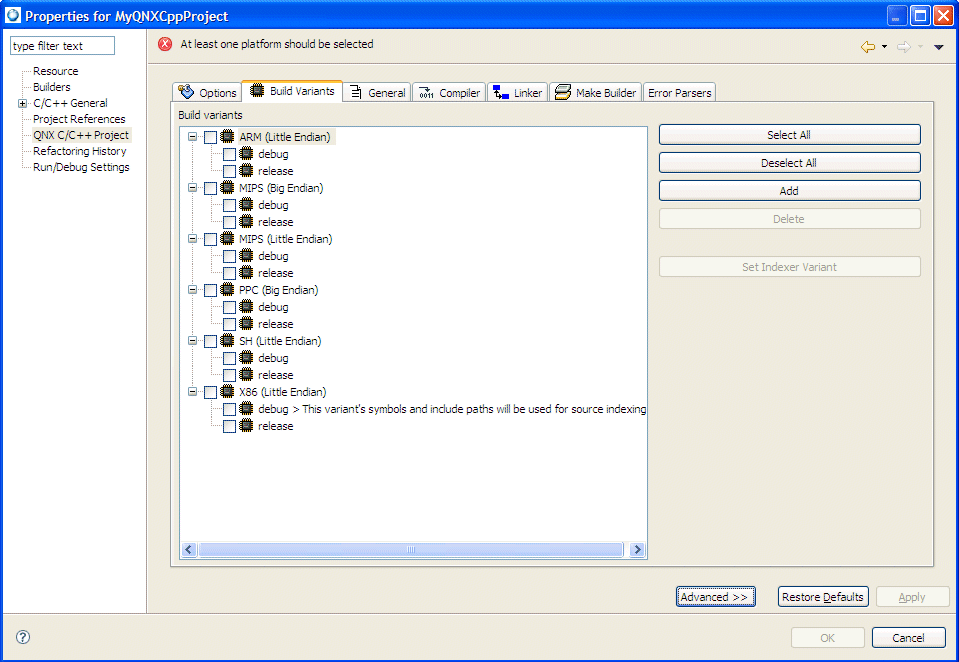
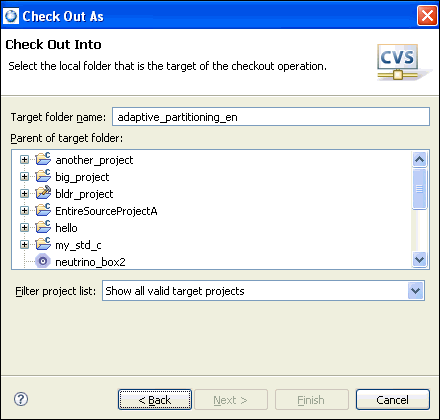
To import from CVS a directory full of C/C++ code into an existing project:
The IDE shows the Check Out As dialog.
To import from SVN a directory full of C/C++ code into an existing project:
The IDE shows the Find/Check Out As dialog.
Use the Import wizard to bring files or folders into an existing project from a variety of different sources, such as:
For details, see “Importing projects” in the Common Wizards Reference chapter.
As an alternative to dragging-and-dropping, you can link files and folders into a project. This method of linking resources lets you include files in your project, even if they need to reside in a specific place on your filesystem (because of a restrictive source control system, for example).
To add a linked resource to a project in the C/C++ Project or Navigator view:
The New File or New Folder dialog appears.
See in the Workbench User Guide for more information about linked resources.
A container is a project that creates a logical grouping of subprojects. Containers can ease the building of large multiproject systems. You can have containers practically anywhere you want on the filesystem, with one exception: containers can't appear in the parent folders of other projects. The IDE doesn't support the creation of projects in projects.
Containers let you specify just about any number of build configurations (which are analogous to build variants in C/C++ projects). Each build configuration contains a list of subprojects and specifies which variant to build for each of those projects.
|
Each build configuration may contain a different list and combination of subprojects (e.g. QNX C/C++ projects, Standard Make C/C++ projects, or other container projects). |
|
To create a container, you must have at least one subproject that you want to contain. |
To create a container project:
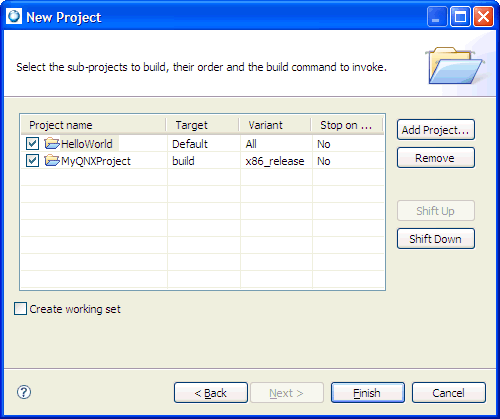
Each subproject has an entry for make targets under the Target field. You can click on an entry to get a menu that lets you change the selection. The “Default” entry means “don't pass any targets to the make command.” QNX C/C++ projects interpret this as “rebuild.” If a subproject is also a container project, this field represents the build configuration for that container.
|
You can set the default for QNX C/C++ projects by opening the Preferences dialog box ( in the menu), and then choosing . |
|
If you later add elements to or remove elements from a container project, the working set isn't updated automatically. |
To select a working set, click the down-arrow at the top of the C/C++ Projects view pane, and then select the working set you want.
Just as QNX C/C++ projects have build variants, container projects have build configurations. Each configuration can be entirely distinct from other configurations in the same container. For example, you could have two separate configurations, say Development and Released, in your top-level container. The Development configuration would build the Development configuration of any subcontainers, as well as the appropriate build variant for any subprojects. The Released configuration would be identical, except that it would build the Released variants of subprojects.
|
Note that the default configuration is the first configuration that was created when the container project was created. |
To create a build configuration for a container:
|
If you want to change the build order, use the Shift Up or Shift Down buttons. |
There are two ways to change existing configurations for a container project, both of which appear in the right-click menu:
|
Although you can use either method to edit a configuration,
you might find changing the properties easier because it
shows you a tree view of your entire container
project.
Note also that you can edit only those configurations that are immediate children of the root container. |
You can use the container project's properties to:
To edit a configuration:
|
While editing a configuration, you can include or exclude a component from the build just by selecting or deselecting the component. If you exclude a component from being built, it isn't removed from your container. |
You can access the Container Build Configuration dialog from the container project's right-click menu.
Note that this method doesn't show you a tree view of your container.
To edit the configuration:
Once you've finished setting up your container project and its configurations, it's very simple to build your container:
|
A project's build variant that's selected in the container
configuration is built, regardless of whether the
variant is selected in the C/C++ project's properties. In
other words, the container project overrides the individual
project's build-variant setting during the build.
The one exception to this is the All Enabled variant in the container configuration. If the container configuration is set to build all enabled variants of a project, then only those variants that you've selected in the project's build-variant properties are built. |
To build the default container configuration, you can also use the Build item in the right-click menu.
QNX BSPs and other source packages (e.g. DDKs) are distributed as .zip archives. The IDE lets you import these packages into the IDE:
| When you import a: | The IDE creates a: |
|---|---|
| QNX BSP source package | System Builder project |
| BSP source package from Foundry27 | System Builder project (see “Importing a BSP package from Foundry27”) |
| QNX C/C++ source package | C or C++ application or library project |
You import a QNX source archive using the standard Eclipse import dialog:
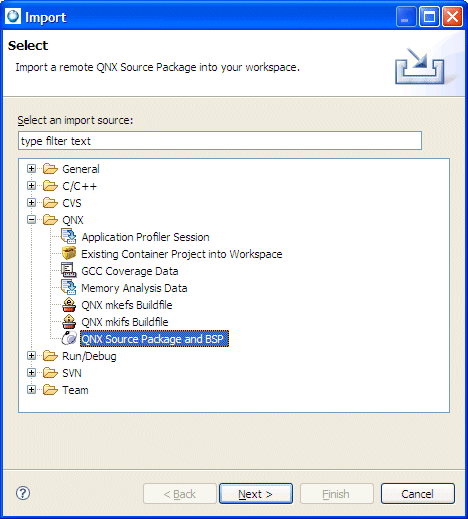
The Import wizard.
|
If you're importing a source package or BSP, select QNX Source Package and BSP. |
As you can see, you can choose to import either a QNX BSP or a “source package.” Although a BSP is, in fact, a package that contains source code, the two types are structured differently and generate different types of projects. If you try to import a BSP archive as a QNX Source Package, the IDE won't create a System Builder project.
Select the method that you want to use to import the package or BSP: from a local file archive, or from a SVN repository on Foundry27.
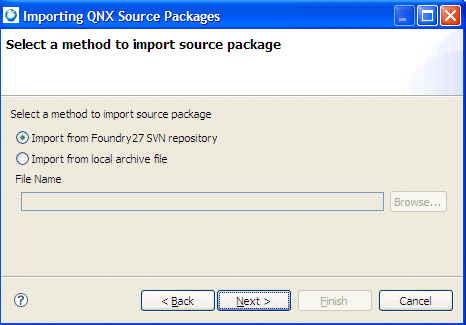
Selecting the method to use to import the source package.
If you select a package archive file, you'll need to specify a name in the File Name field, or click Browse to locate and select a file. After you choose the archive file type, by default the wizard presents you with a list of the packages on your host:
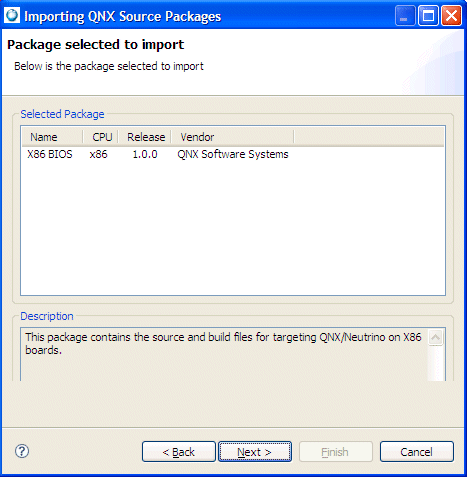
Choosing a package to import.
Notice that as you highlight a package in the list, the IDE shows a description for that package.
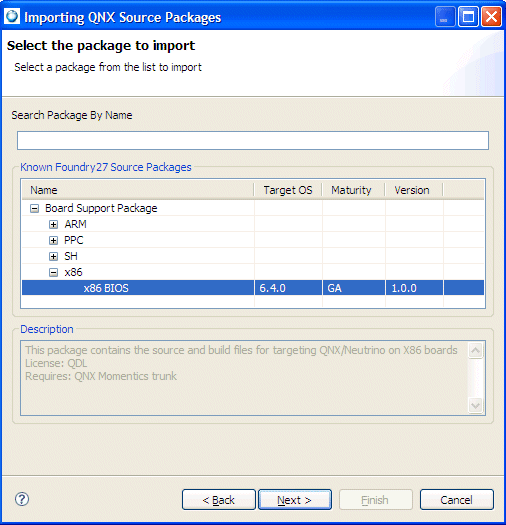
If you select a file from a SVN repository on Foundry27, you'll need to select a package:
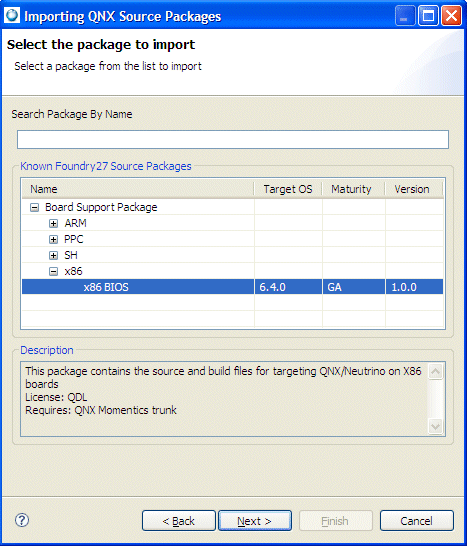
Choosing a package to import from Foundry27.
Each source package contains several components (or projects, in IDE terms). For the package you selected, the wizard gives you a list of each source project contained in the archive:
Selected source projects to import.
You can decide to import only certain parts of the source package; simply uncheck the entries you don't want (they're all selected by default). Again, as you highlight a component, you'll see its description in the bottom pane.
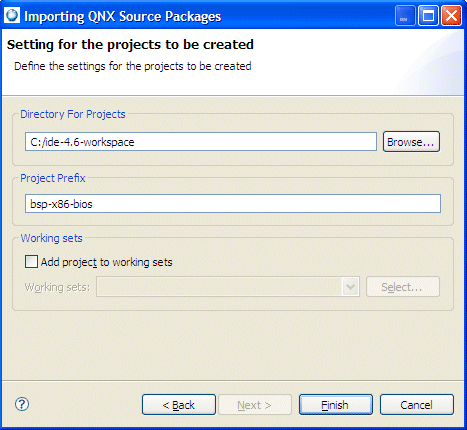
The last page of the import wizard lets you name your source projects. You can specify:
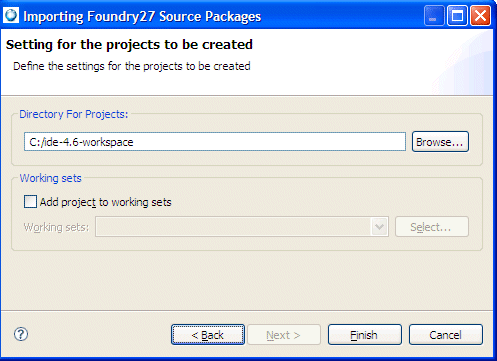
The Settings panel for specifying options for the project being created for the imported source package or BSP.
To specify the settings for the project being created:
If this is the first time you perform a checkout from Foundry27, the SVN New Repository Wizard is displayed.
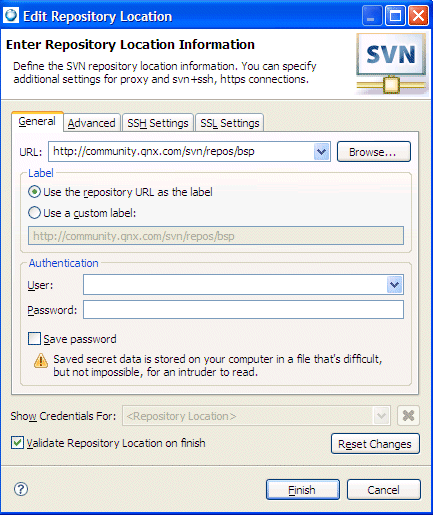
You'll need to specify your user ID and password that correspond to your Foundry27 account. In addition, you'll need to be successfully authenticated before you can proceed to the next panel in the wizard.
Click Finish to begin importing the package.
You might see a list of dependent package(s) with warning message at the bottom of the panel. The package won't build if you don't checkout the dependencies for the selected package.
|
If required, you might have to select any required dependency checkbox(s); you'll need to select which dependent package(s) to checkout at the same time. |
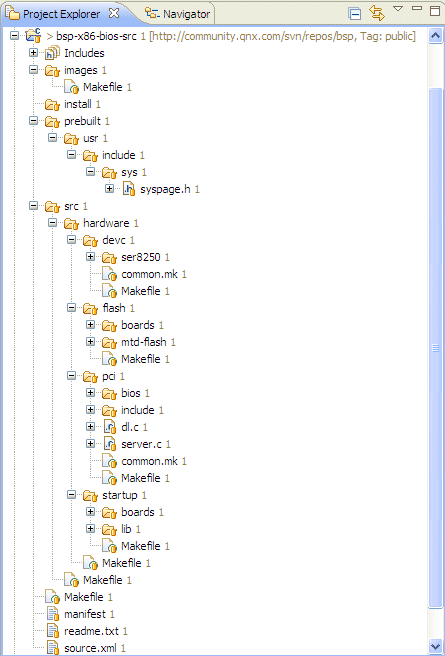
The IDE sets up the required project properties (compiler options, build targets, and so on) so that the projects are able to build after the checkout process. In addition, the IDE maintains the source tree layout (to preserve the current status of the checked out source), sets up prebuilt and staging areas for the project, when necessary, and also creates the BSP project.
If you plan to import a BSP into the IDE, remember to give each project a different name.
|
If you import dual-endian BSPs, the wizard shows this informational message:
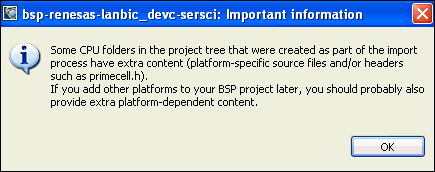
If you add build variants, you need to copy the CPU-specific files to the new variant's build directories. |
When you finish with the wizard, it creates all the projects and brings in the source from the archive. After the checkout of the BSP completes, right-click on the BSP project and select Build; the src project will be auto-built by the BSP project. The IDE will build all of the source under one project. Because the IDE creates a dependency between the BSP project and the src project, you don't need to build the src project; only the BSP project.
|
If you answer Yes, the IDE begins the build process, which may take several minutes (depending on how much source you've imported). |
If you decide not to build now, you can always do a Rebuild All from the main toolbar's Project menu at a later time.
If you didn't import all the components from a BSP package, you can bring in the rest of them by selecting the System Builder project and opening the import wizard (right-click the project, and then select Import…). The IDE detects your selection and then extends the existing BSP (rather than making a new one).
When you import a QNX BSP, the IDE opens the QNX BSP Perspective. This perspective combines the minimum elements from the C\C++ Development Perspective and the System Builder Perspective.
When you import a QNX Board Support Package, the IDE opens the QNX BSP perspective, which combines the minimum elements from both the C/C++ Development perspective and the System Builder perspective:
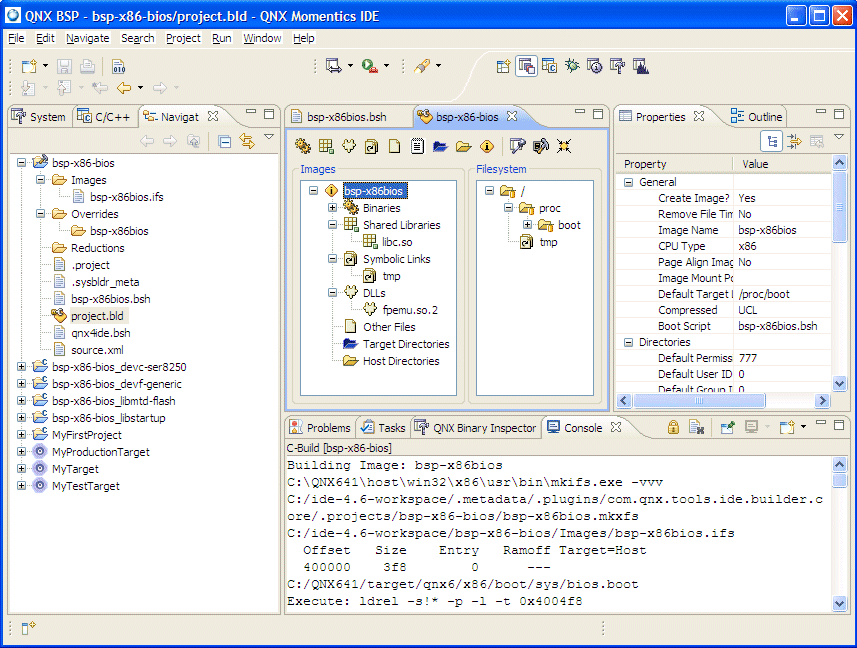
The BSP perspective.
The IDE lets you:
Using the IDE, you can:
For information about setting options to export a BSP, see “Setting export options for a BSP.”
You can use the Import Wizard from the IDE to locate and import remote source packages from Foundry27. To import a BSP package from Foundry27:
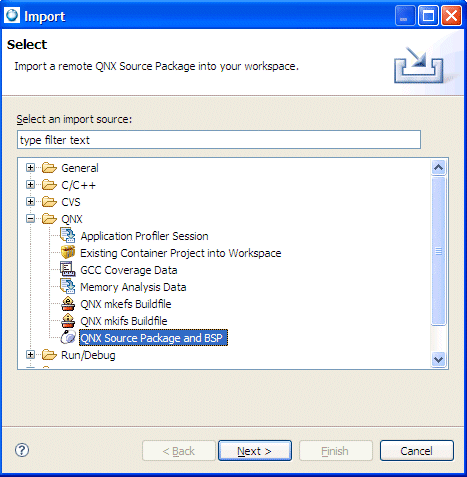
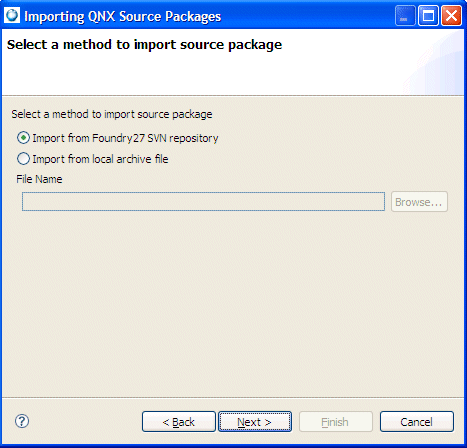
The panel shows the Foundry27 package in a tree structure. The packages are expandable if they contain sub-packages.
The Description field provides a brief description about the selected package.
If this is the first time you perform a checkout from Foundry27, the SVN New Repository Wizard is displayed.
You'll need to specify your user ID and password that correspond to your Foundry27 account. In addition, you'll need to be successfully authenticated before you can proceed to the next panel in the wizard.
You might see a list of dependent package(s) with warning message at the bottom of the panel. The package won't build if you don't checkout the dependencies for the selected package.
|
If required, you might have to select any required dependency checkbox(s); you'll need to select which dependent package(s) to checkout at the same time. |
The IDE sets up the required project properties (compiler options, build targets, and so on) so that the projects are able to build after the checkout process. In addition, the IDE maintains the source tree layout (to preserve the current status of the checked out source), sets up prebuilt and staging areas for the project, when necessary, and also creates the BSP project.
The IDE will build all of the source under one project. Because the IDE creates a dependency between the BSP project and the src project, you don't need to build the src project; only the BSP project.
To view and check out source packages directly from the source tree:
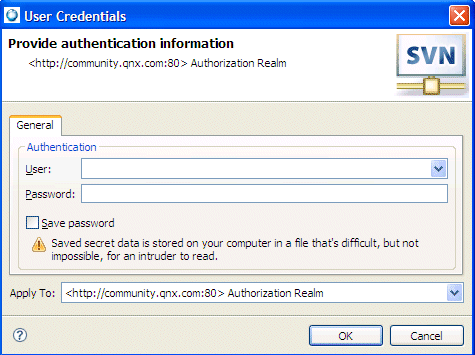
|
In the SVN repository view, when you create a new repository location, we recommend that if permitted, you also save the password. This means the next time you select this repository location, the Authentication dialog doesn't display. |
|
The Foundry27 Welcome page contains community news, posted downloads, and updated product marketing information. The Welcome page has links to remote Foundry27 pages and to local help pages. |
You can export projects to your filesystem or to an archive file by doing one of the following:
|
Press Alt while dragging to copy the file or folder instead of moving it out of the project. |
The Export wizard helps you export an entire project to your filesystem or an archive file.
To export one or more projects:
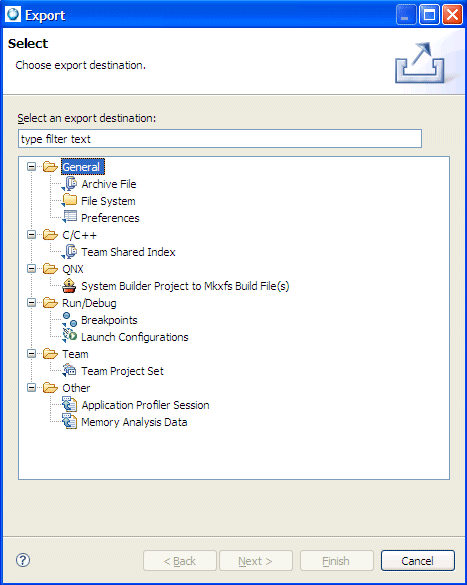
The Export wizard appears:
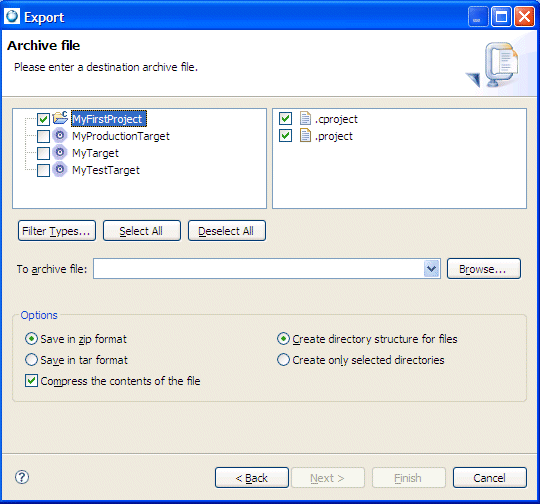
The Export wizard's next panel appears:
To select files based on their extensions, click the Select Types… button. The Select Types dialog box appears:
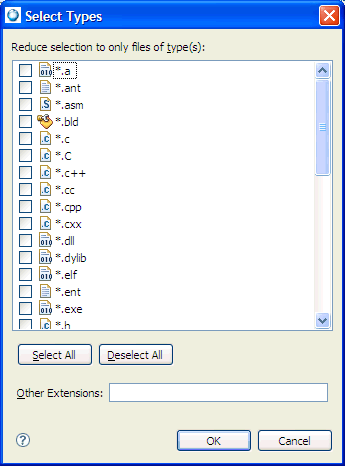
Click one or more extensions, and then click OK to filter the selected files in the Export wizard.
|
If you export more than one project, and you import from the resulting filesystem or archive file, you'll get one project containing all of the projects you exported. |
You can export a System Builder project to a Mkxfs build file(s) by doing the following:
The Export wizard appears:
To select files based on their extensions, click the Select Types… button. The Select Types dialog box appears:
Click one or more extensions, and then click OK to filter the selected files in the Export wizard.
|
To achieve same results as when using IDE build, when you export a build file, ensure that if you're using Override folders, you use -r option to pass the path to the override directory. |
|
|
|
|