![[Previous]](../prev.gif) |
![[Contents]](../contents.gif) |
![[Index]](../keyword_index.gif) |
![[Next]](../next.gif) |
|
|
|
|
 |
This version of this document is no longer maintained. For the latest documentation, see http://www.qnx.com/developers/docs. |
Tiny webserver
slinger [-a administrator] [-c] [-d] [-e]
        [-i address] [-n] [-p port_number] [-s]
Neutrino
The slinger utility is an HTTP server for resource-constrained environments. Slinger is compliant with the CGI 1.1 and HTTP 1.1 standards, and provides support for dynamic HTML via Server Side Includes (SSI).
To run Slinger, type:
slinger &
The slinger server listens on the TCP port 80. Since this is under 1024, slinger needs to be run as root. As soon as it has attached to the HTTP port, it drops itself down to user -2 (setuid (-2)).
Slinger supports Server Side Include (SSI) commands to provide dynamic HTML. For example, Slinger uses the PATH and CMD_INT environment variables to provide information to the SSI command, exec. Using dynamic HTML, clients can offer interactive realtime features on their web pages.
Clients code dynamic HTML by placing SSI tokens in the HTML code of their web pages. The SSI token contains an SSI command that's handled by Slinger. While transmitting the HTML code, Slinger replaces a token with HTML data based on the tag contained in the SSI token.
 |
For Slinger to process SSI tokens, the HTML file must have .shtml as its file extension. |
The syntax of an SSI token is as follows:
<!--#tag [[variable_set[="value"]] ...] -->
where:
|
There must be a space before the ending comment delimiter. |
There's no limit to the token size (other than memory).
The valid SSI commands are: break, config, echo, exec, if, goto, include, label, and qnxvar.
Terminate transmission of an HTML document at any point. The break command has no arguments, so the syntax is:
<!--#break -->
Set certain HTML output options. The syntax is:
<!--#config variable_set="value" -->
The variable_set may contain: cmdecho, cmdprefix, cmdpostfix, errmsg, onerr, timefmt. For details, see the "config commands" section.
Insert data from an HTML form field or an environment variable onto an HTML page. The echo command has one argument, var. The syntax is:
<!--#echo var="string" -->
where string is the value of an HTML form field or an environment variable. For example:
<!--#echo var="Last name" -->
Or
<!--#echo var="DATE_LOCAL" -->
The echo command uses these SSI variables, as well as CGI environment variables (for more information, see the Environment variables section in this utility):
Spawn an external program and print the output at the location of the exec token on the HTML page. The external program is spawned to increase performance. The exec command takes the following arguments:
<!--#exec cgi="executable[/pathinfo]" -->
where:
For example, suppose you have a CGI script, othello.cgi, and the HTTPD_SCRIPTALIAS environment variable contains the directory /web/games/. If you put the following token on your HTML page, Slinger searches for the othello.cgi script in the /web/games/ directory:
<!--#exec cgi="othello.cgi" -->
<!--#exec cmd="[path/]executable [args]" -->
where:
The cmd token uses the CMD_INT environment variable to identify the command interpreter, shell_program, and then spawns a shell using the following:
shell_program -c "string"
where string is [pathname/]executable [arguments].
If a full pathname isn't provided, Slinger uses the path defined in the PATH environment variable to locate the shell_program and the executable. You can echo the output using:
<!--#config cmdecho="ON" -->
For example:
<!--#config cmdecho="ON" -->
<!--#exec cmd="cd /home/smr; ls" -->
Conditionally execute SSI operations and conditionally print the HTML text. The syntax of the if command is:
<!--#if "op1" operator "op2" operation -->
where:
The hasstring operator returns TRUE if the character string in op2 is found in the op1 string.
If both operands are numbers, they're compared as numbers; otherwise, the comparison is based on the alphabetic order of the operands.
If the logical comparison evaluates to FALSE, nothing happens. For example:
<!--#if "5" != "10" goto thislabel -->
The NULL operand is defined by "". NULL may be used to check for the existence of data in a form field.
For example, if you have a form with the field Last name and you want to ensure the user doesn't leave it blank, then the token is:
<!--#if "Last name" == "" printbreak "<P>The Last
 name field cannot be blank; please resubmit the
 form." -->
If the field isn't empty, nothing happens. But if the field is empty, the message is displayed and the HTML document terminates.
Jump to a labeled token (without printing skipped text or applying skipped tokens). The syntax of the goto command is:
<!--#goto ="label_name" -->
where label_name is defined in a subsequent label command on the HTML page.
|
Remember to put a space before the equal sign. |
Here's an example of how the goto and label commands are used together:
<!--#goto ="change_temp" -->
<!--Skip this part of the HTML page. -->
<!--#label ="change_temp" -->
<!--Slinger continues scanning -->
<!--the HTML code here. -->
Insert the contents of a file into an HTML page. The include command takes these arguments:
<!--#include file="pathname" -->
where pathname is the path and filename of an HTML file relative to the directory of the current web page. Don't use absolute paths, and don't use ../ in the pathname (since you can't include a pathname that begins above the current directory).
Use the file tag when you include files that are in the same directory as the current directory. For example, suppose you have a directory web/support/docs/ containing two files my_doc.html and docs.html, and the URL is www.something.com/support/docs/docs.html. To insert the my_doc.html file into the HTML page, write the token as:
<!--#include file="my_doc.html" -->
The file my_doc.html is relative to the directory (web/support/docs) of the current document (docs.html).
<!--#include virtual="pathname" -->
where pathname is the path and filename relative to the root directory on the Slinger server, configured in the HTTPD_ROOT_DIR environment variable.
When you use the virtual tag, Slinger begins its search for the file from the root directory. For example, suppose you have a directory web/support/docs/ that contains the file my_doc.html, and the HTTPD_ROOT_DIR environment variable contains the web directory. To insert my_doc.html into the HTML page with the URL web/support/docs/my_doc.html, write the token as:
<!--#include virtual="/support/docs/my_doc.html" -->
The include command is recursive; each file inserted may contain include tokens.
|
Although the inserted file can't be a CGI script, it can contain a reference to a CGI script. |
When Slinger encounters a goto command, jump to the label token on the HTML page. The syntax of the label command is:
<!--#label ="label_name" -->
|
The maximum length of label_name is 60 characters. Remember to put a space before the equal sign. |
For example:
<!--#label ="change_temp" -->
Get data or change data on the data server process. The qnxvar command takes the following arguments:
<!--#qnxvar format="[text] %s [text] " -->
where:
The format remains in effect until the next format statement. For example:
<!--#qnxvar format="I work for %s." -->
If you want to print the % sign followed by a variable, you have to enter: \% %s. To print %s, type \%s.
<!--#qnxvar read="var_name len [var_name len]" -->
where len is the size in bytes.
Data is printed up to NULL or the length of the data. The format of the result is specified with the format tag. For example:
<!--#qnxvar read="company_name 20" -->
<!--#qnxvar write="var_name "data"" -->
where data is a string. For example:
<!--#qnxvar write="set.temperature "300"" -->
|
The maximum length of var_name is 60 characters. Don't omit the space after the var_name. |
<!--# config cmdprefix="string" -->
where string is any character string or HTML format tag.
If cmdecho is set to ON, the output is prefixed with string. Otherwise, the output isn't parsed or printed.
<!--# config cmdpostfix="string" -->
where string is any character string or HTML format tag.
If cmdecho is set to ON, the output is appended with string. Otherwise, the output isn't parsed or printed.
For example, to make the output of the exec command appear on separate lines:
<!--# config cmdpostfix="<BR>" -->
<!--# config errmsg="string" -->
where string is any character string or HTML format tag. For example:
<!--# config errmsg="<P><CENTER>*ERROR*</CENTER>" -->
The error message remains in effect until the next errmsg is configured.
<!--#config onerr="action" -->
The possible values of action are:
<!--#config onerr="goto label" -->
For example:
<!--#config onerr="goto oven_temp" -->
<!--#config onerr="print " string"" -->
where string is any character string or HTML tag.
<!--#config onerr="printbreak " string"" -->
where string is any character string or HTML tag. For example:
<!--#config onerr="printbreak "<P>printbreak
 error encountered. Terminating transmission of HTML
 text."" -->
<!--#config timefmt ="string" -->
where string is compatible with the ANSI C library function, strftime(). The default string is %a %b %d %T %Y.
For example:
<!--#config timefmt ="%A %B %d %Y" -->
You can dynamically generate HTML in order to support changing systems. The main components in such a system are:
There are three ways to provide dynamic HTML:
The data server process, ds, stores global data. External applications can modify or read this global state through the use of the data server API. Slinger can modify or read the global state via the qnxvar SSI command.
Here's a conceptual view of a device monitored and controlled by both an external application and a remote client of Slinger:
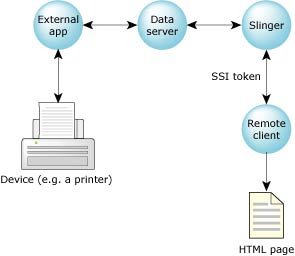
Using the data server.
To use dynamic HTML:
If you want your CGI script to be executed, then the script must be requested with the URL:
http://hostname/cgi-bin/scriptfile
where:
When Slinger executes a CGI script, it parses the output of the script for HTTP header directives. Slinger must buffer the header directives, before transmitting the script data, in case a header directive is passed that'll affect the format of the default header directives. Up to 1K of header information can be buffered. CGI scripts must provide a valid header.
Slinger identifies the end of the header as a blank line, lines are terminated with a <LF> or a <CR><LF>. A common HTTP header directive to provide specifies the type of data that the CGI script provides. The default Content-Type is "text/html." For example:
Content-Type: text/html<LF>
<LF>
CGI script data...
Slinger supports the following CGI header directives:
| Directive | Description | Example |
|---|---|---|
| Content-Type | Type of data being sent back to the client. | Content-Type: text/html |
| Location | Reference a file by a URL. | Location: http://www.qnx.com |
| Status | Pass a status code and explanation back to the client. If Slinger executes the script successfully, it passes a status of 200 OK (unless the script changes the status). | Status: 200 OK |
Any other directives are just added to the HTTP header.
|
A script with the filename prefix nph- (e.g. nph-myscript.cgi) won't be parsed by Slinger; only the raw data from the script is sent. Because Slinger doesn't add any HTTP header content, any script that isn't parsed must provide the entire HTTP header in its script output. |
When you choose the directory for your data files:
If you configure Slinger to support CGI:
Don't expose your machine to undue risk. Make sure that:
These precautions prevent somebody from giving your machine a new password file or tampering with your web pages.
We recommend that you put your documents and scripts in separate directories. In this example, the documents are in the /usr/webdoc directory, the root document is foo.html, and the CGI scripts are in /usr/web/cgi:
export HTTPD_ROOT_DIR=/usr/webdoc
export HTTPD_ROOT_DOC=foo.html
export HTTPD_SCRIPTALIAS=/usr/web/cgi
slinger &
In this example, anyone can download the scripts because the documents and scripts are in the same directory:
export HTTPD_ROOT_DIR=/usr/web
export HTTPD_ROOT_DOC=foo.html
export HTTPD_SCRIPTALIAS=/usr/web
slinger &
The slinger webserver requires a TCP/IP stack (e.g. npm-tcpip.so) and the libsocket.so shared libraries.
Slinger uses the following environment variables to set its configuration:
For example, let's say HTTPD_ROOT_DOC is defined as index.html and HTTPD_ROOT_DIR is defined as /usr/www. Slinger appends index.html to /usr/www to build /usr/www/index.html.
Note that if you define HTTPD_SCRIPTALIAS, anybody can run scripts or processes that reside in this directory on your machine. Not defining HTTPD_SCRIPTALIAS turns CGI off, causing all CGI requests to fail.
For example, suppose HTTPD_SCRIPTALIAS contains /cgi/bin as the name of the directory. If Slinger gets a request for the resource www.qnx.com/cgi-bin/get_data.cgi/foo, the get_data.cgi script found in /cgi/bin is executed, and foo is sent as pathname information to get_data.cgi. The foo directory is stored in the PATH_INFO environment variable (described below).
|
To help keep your system secure, don't use /bin or /usr/bin as your CGI directory. |
Slinger sets the following environment variables, which can be used by CGI scripts:
The slinger webserver communicates over TCP sockets, so you need to have socket runtime support. This means you need to have a TCP/IP stack running.
When configuring slinger, take care not to expose your machine to undue risk:
These precautions prevent somebody from giving your machine a new password file, or tampering with your web pages.
If you configure slinger to support CGI, keep the following in mind:
Besides these precautions, you should also keep your documents and scripts in separate areas. This prevents people from either reading or modifying your scripts.
ds, npm-tcpip.so, npm-ttcpip.so
Setting Up an Embedded Web Server in the Neutrino User's Guide
HTTP://hoohoo.ncsa.uiuc.edu/cgi/
RFC 2068
|
|
|
|