QNX Developer Support
![]() |
![]() |
![]() |
![]() |
qnxinstall
GUI-based QNX Software Installer (QSI)
![]() |
QNX Neutrino no longer uses packages, but third-party software can. |
Syntax:
qnxinstall [options] [qpr_file]
Options:
- -l
- Show the installed (local) software.
- -r repository
- Open the given repository, specified as an URL, a directory, or a .qpr file.
- -u repository
- Same as the -r option.
Photon Options:
- -h height[%]
- The height of the window, in pixels, or as a percentage of the screen height if % is specified.
- -Si|m|n
- The initial state of the main window (iconified, maximized, or normal).
- -s server_name
- The name of the Photon server:
If server_name is: This server is used: node_path node_path/dev/photon fullpath fullpath relative_path /dev/relative_path - -w width[%]
- The width of the window, in pixels, or as a percentage of the screen width if % is specified.
- -x position[%][r]
- The x coordinate of the upper-left corner of the window, in pixels, or as a percentage of screen width if % is specified. If r is specified, the coordinate is relative to the current console.
- -y position[%][r]
- The y coordinate of the upper-left corner of the window, in pixels, or as a percentage of screen height if % is specified. If r is specified, the coordinate is relative to the current console.
Advanced Options:
- -f no-find-cd
- Disable the detection of the CD repository.
- -f no-find-web
- Disable the detection of the web repository.
- -f prompt-cd
- Prompt for a CD repository on startup, if no CD is in the drive.
- -f proxy=address:port
- Use the given proxy address and port.
- -f proxy-auth=user:password
- Use the given proxy user and password.
Description:
The QNX Software Installer (QSI) provides a mechanism for you to manage packages on your system. It shows you all currently installed software, lets you manage the installed software, and lets you install new software from any location.
You can start the installer by typing qnxinstall at the command line, or by selecting Launch-->Software-->Installer from the Photon launch menu. The installer is a GUI-based application with standard buttons and controls.
![]() |
The qnxinstall application is available only on self-hosted Neutrino machines. |
This description contains the following sections:
- Overview
- Starting the installer
- Main window
- Opening a repository
- Finding repositories
- Closing a repository
- Show/Hide repositories pane
- Using bookmarks
- Browsing a repository
- Installing software
- Uninstalling software
- Activating software
- Setting proxy server preferences
- Restarting fs-pkg
Overview
Under QNX Neutrino, you can execute qnxinstall only as a user with root privileges. If you're not logged in as root, qnxinstall will prompt you for the root password. You may execute only one instance of the QSI at a time, because it will modify your system software and restart the package filesystem (where necessary).
While executing, the QSI keeps a log of the activities that it performs. You can find the log at ${QNX_HOST}/etc/system/package/session.log (note that under Neutrino, $QNX_HOST is /). Five backups of session.log are kept as session.log.1, session.log.2, and so on.
QNX software is organized into packages, which hold any number of files. A number of packages form a product, which may include processor-specific and processor-independent packages. Products may be combined into a bundle. Combining a set of packages, products, or bundles into a single location forms a repository.
Packages, products, and bundles can be in different states. For a description of install states, see the Installing chapter of the Neutrino User's Guide.
Starting the installer
When you start the QSI, a splash screen comes up and the following things happen:
- Installed software is loaded.
- Bookmarks are loaded.
- Local CD drives are scanned, and any repositories found appear in the Repositories panel under New Repositories.
Main window
The main installer window looks like this:
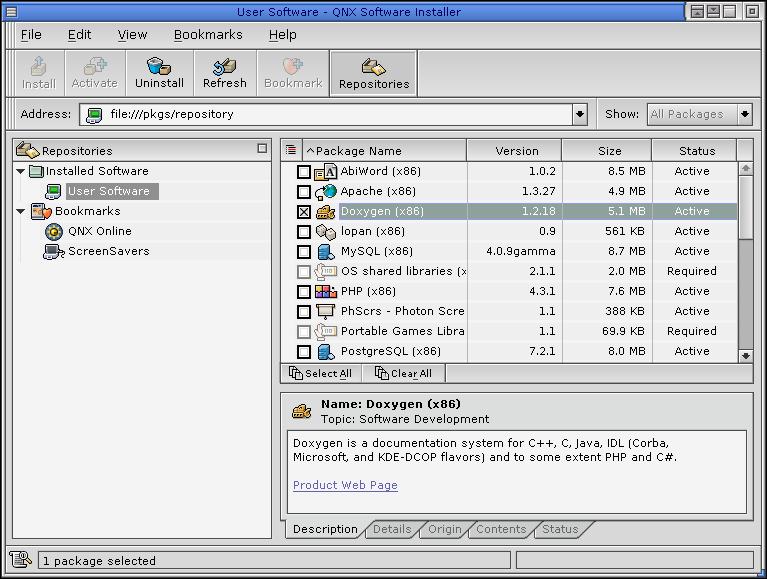
This window includes the following components:
- menu bar
- tool bar
- address bar
- Repositories pane
- Packages pane
- Package Info pane
- status bar.
The menu bar includes:
- File menu:
- Open Repository -- open a repository via an open dialog.
- Close Repository -- close a repository by removing it from the repository list.
- Find CD Repositories -- find repositories on local CD drives.
- Find Web Repositories -- update the list of well-known repositories from the QNX website.
- Manage Repositories -- add, delete, or activate blocks of installed repositories to support multiple Neutrino version configurations.
- Restart Package File System -- (Neutrino only) restart fs-pkg.
- Exit -- exit the installer.
- Edit menu:
- Select All -- select all packages in the selected repository.
- Clear All -- clear all packages in the selected repository.
- Install -- install the selected packages.
- Activate -- activate the selected packages.
- Uninstall -- uninstall the selected packages.
- File Lookup -- search for installed packages that contain a specific file or file pattern.
- Restore Spilled Files -- view or restore changed or deleted files to their original, installed state.
- Remove Inactive -- uninstall all inactive packages from the selected installed repository.
- Preferences -- show the preferences dialog for proxy server settings.
- View menu:
- Repositories -- toggle the display of the Repositories pane.
- Show Topics -- toggle the display of package topics.
- Show Bundles -- toggle the display of bundle children.
When selected, bundles become the top level of the display tree,
and children packages in the bundle are displayed as items under
each bundle. You can view the packages contained in a bundle by
expanding the tree.

You can't act on individual packages in a bundle, but you can view details for each package by selecting it.
- Host Platform -- toggle the filter that shows only packages that apply to a host platform.
- Target Platform -- toggle the filter that shows only packages that apply to a target platform.
- Session Log -- show the session.log file.
- Refresh -- reload the contents of the current repository.
- Bookmarks menu:
- Add to Bookmarks -- add the current repository to the bookmarks. When a repository is bookmarked, it appears in the Bookmarks list the next time your run the installer.
- Manage Bookmarks -- display a dialog that lets you add, remove or modify your bookmarks.
This menu also lists the installed and bookmarked repositories. You can open a repository by selecting it from this menu.
- Help menu:
- Quick Reference -- (Neutrino only) display the qnxinstall documentation in the helpviewer.
- About Installer -- show version information for qnxinstall.
The tool bar provides buttons for Install, Activate, Uninstall, Refresh, Bookmark, and toggle Repositories pane.
The address bar shows the current repository URL and a dropdown list of previously entered URLs. You can type a new repository URL in the address bar to open that repository.
The package filter allows you to limit the types of packages shown. You can select these options from the Show drop-down list to filter packages:
- All Packages -- show all packages in the repository.
- New Packages -- show only new packages.
- Updates Only -- show only packages that are updates.
- Installed Only -- show only packages that are currently installed on your system.
The Repositories pane includes:
- Installed Software folder -- list the installed repositories for the block of repositories called "Installed Software".
- New Repositories folder -- list new (unbookmarked) repositories and CD repositories.
- Bookmarks folder -- list the bookmarked repositories, and the QNX Online repository.
The Packages pane includes a list of the packages in the current repository, as well as columns for Package Name, Version, Size, and Status that sort the packages in corresponding order. The topic sort button (Neutrino only) toggles the Topics view, which is equivalent to selecting View-->Show Topics. This pane also includes buttons for Select All and Clear All (Neutrino only).
The Package Info pane includes:
- Description tab -- show descriptive text for the current package, and a link to the product web page, if available. Use Ctrl-1 to switch to this tab.
- Details tab -- show some details about the selected package, including version, size, release date, license type, and release priority level. Use Ctrl-2 to switch to this tab.
- Origin tab -- show author/vendor information for the current package. Use Ctrl-3 to switch to this tab.
- Contents tab -- show information about the contents of the package, including location. Click on View Package Contents to view the locations and names of all files in the package. Use Ctrl-4 to switch to this tab.
- Status tab -- show the install status of the currently selected package. Use Ctrl-5 to switch to this tab.
The status bar shows the total number of packages displayed if none are selected, or the number of packages selected. For installed repositories, the status bar also shows your free disk space, and the amount of disk space that woudl be freed if you selected the Remove Inactive option from the Edit menu.
Opening a repository
There are several ways to open a repository:
- Enter the repository URL in the Address bar, and then press Enter.
Or:
- Select Open from the File menu, or use Ctrl-O. This brings up the Open Repository dialog
where you can type the URL directly in the Location field.
Or:
- Select a repository from the Bookmarks menu.
Or:
- Select a repository from the Repositories pane.
When you open the repository, a status dialog appears with progress messages while the repository is being loaded. The Packages pane then displays a list of packages.
Finding repositories
To find CD repositories:
- Select Find CD Repositories from the File menu.
- The QSI scans your local CD drives. If it finds any repositories, it displays them in the Repositories pane under New Repositories.
To find web repositories:
- Select Find Web Repositories from the File menu.
- The installer downloads a list of known repositories from the QNX web site and displays any new web repositories in the Repositories pane under New Repositories.
Closing a repository
To close the currently selected repository:
- Select Close Repository from the File menu.
- The installer closes the repository and clears the Packages pane. If the repository is a new one (i.e. it appeared under the New Repositories folder), it's removed from the Repositories pane.
Show/Hide Repositories pane
You can toggle the Repositories pane to be on (visible) or off (hidden) by using the toolbar button marked Repositories or by selecting the Repositories item on the View menu.
Using bookmarks
Bookmarks are an easy way to keep track of repositories you've opened. When you first start qnxinstall, you see a list of previously bookmarked repositories.
When you select a new repository, the Bookmark toolbar button becomes active, which means that you can add the repository to your bookmarks list (you can also use the Add Bookmarks item from the Bookmarks menu). When you add a bookmark, a dialog pops up, showing the repository name and location. You can edit the repository name if necessary, and optionally enter a user name and password if it's a secure repository.
You can edit the bookmarks list by using the Edit Bookmarks item from the Bookmarks menu. A dialog appears that lets you add, remove, and edit bookmark entries.
Browsing a repository
Once you've opened a repository, you'll see a list of packages in the Packages pane. If you select a package, the Packages Info pane shows more detailed information about it.
You can mark packages to install/uninstall/activate by clicking the checkbox next to the package. Once you've marked one or more packages, the toolbar buttons that correspond to the available actions for those packages become enabled. For example, marking New packages causes the Install button to become enabled, marking Installed packages causes the Uninstall button to become enabled, and marking both causes both buttons to become enabled. You can unmark a package by clicking the checkbox again.
You can view packages by topic using the View menu or topic sort button (described above). This creates a hierarchical view of the packages and their topic categories. You can mark an entire topic for install/uninstall/activate by clicking the checkbox next to the topic; all child packages are automatically marked.
Installing software
To install software:
- Mark the packages you wish to install, as described above.
- Click the Install button. (This button is enabled if at least one of the marked packages is available to be installed.)
- A Status dialog pops up while dependencies are being resolved. If the installer can't resolve all of the dependencies, you're asked if you wish to open all repositories in order to search for dependencies.
- If all dependencies are resolved successfully, an Action Preview dialog appears, showing the packages that are about to be installed, as well as the space required and space available on disk.
- Click Continue on the Action Preview dialog to start the installation.
- Once the install starts, a web page appears on the window background with a status area below it. The web page contains product or other information for you to read during installation. The status area shows the ongoing installation progress.
- When the installation is finished, an Installation Complete dialog appears. At this point, you can click the View Log button to view the session log or click the Done button to return to the main window.
Uninstalling software
To uninstall software:
- Mark the packages you wish to uninstall, as described above.
- Click the Uninstall button. (This button is enabled if at least one of the marked packages is available to be uninstalled.)
- An Action Preview dialog appears, showing the packages that are about to be uninstalled.
- Click Continue on the Action Preview dialog to start the operation.
- Once the uninstall starts, a web page appears on the window background with a status area below it. The web page contains product or other information for you to read while uninstalling. The status area shows the ongoing progress.
- When the uninstallation is finished, an Uninstallation Complete dialog appears. At this point, you can click the View Log button to view the session log or click the Done button to return to the main window.
Activating software
To activate software:
- Mark the packages you wish to activate, as described above.
- Click the Activate button. (This button is enabled if at least one of the marked packages is available to be activated.)
- An Action Preview dialog appears, showing the packages that are about to be activated.
- Click Continue on the Action Preview dialog to start the operation.
- A web page appears on the window background with a status area below it. The web page contains product or other information for you to read while activating the software. The status area shows the ongoing activation progress.
- When the activation is finished, an Activation Complete dialog appears. At this point, you can click the View Log button to view the session log or click the Done button to return to the main window.
Setting proxy server preferences
The Preferences dialog lets you configure the proxy settings that the installer uses when accessing web (FTP or HTTP) repositories. Here, you can turn on the proxy server and supply the address, port, username and password.
Restarting fs-pkg (Neutrino only)
You can manually restart the package filesystem by selecting the Restart Package File System item from the File menu.
Examples:
Open the CD repository on startup:
qnxinstall -r /fs/cd0/repository
Open the QNX WWW repository on startup:
qnxinstall -r http://packages.qnx.com/repository
Open the QPR repository on startup:
qnxinstall /home/bob/whatsit-2.1.3a-x86-public.qpr
Open the User Software repository on startup:
qnxinstall -l
See also:
"Package filesystem" in the Working With Filesystems chapter of the User's Guide
![]() |
![]() |
![]() |
![]() |

![[Previous]](../prev.gif)
![[Contents]](../contents.gif)
![[Index]](../keyword_index.gif)
![[Next]](../next.gif)
